DocsFeaturesDashboard

Dashboard

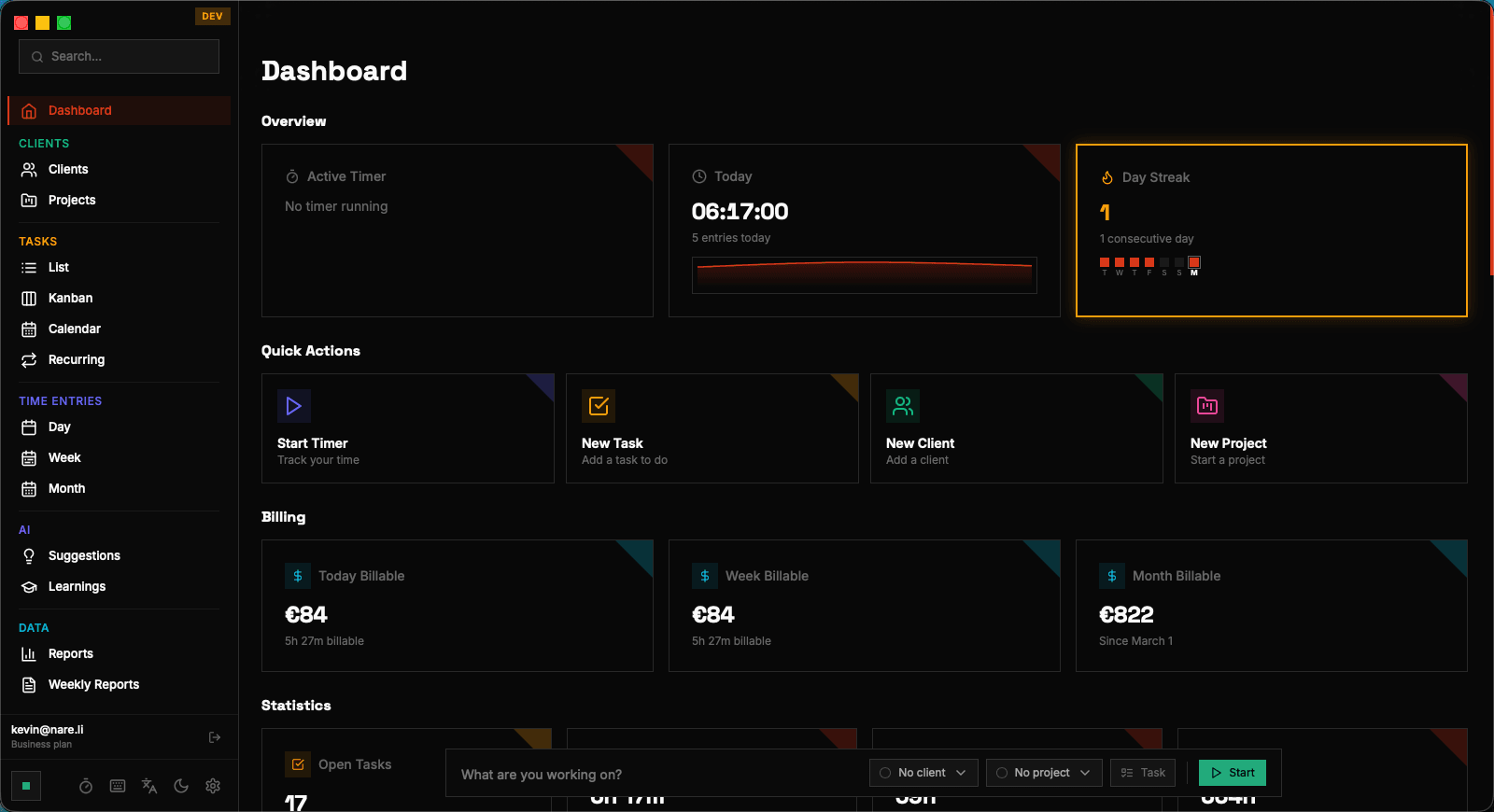
Your command center for productivity insights. The Dashboard brings together daily summaries, weekly trends, time distribution charts, productivity streaks, and goal progress into a single, actionable overview.

Overview of Dashboard Widgets

The Dashboard is the first page you see when you open Nareli. It's designed to give you a complete picture of your productivity in a single glance, organized into a grid of purpose-built widgets. Each widget focuses on a specific metric or visualization, and together they answer the fundamental question: "How am I spending my time?" The Dashboard layout is divided into primary and secondary zones. The top section features large, prominent widgets for daily summary, weekly trends, and time distribution. Below that, smaller widgets display streak counts, goal progress, and recent activity. This hierarchy ensures the most actionable information is front and center. All Dashboard widgets update in real-time as you track time. Start a timer, and the daily summary widget immediately reflects the running entry. Complete a task, and the task completion count increments. This live updating means you never need to refresh the page — the Dashboard is always current, always accurate. The Dashboard respects your configured timezone for all date-based calculations. "Today" and "this week" are determined using your system timezone (sent to the server via the X-Timezone header), ensuring that your daily summaries align with your actual workday regardless of where you are or what timezone your machine is set to.

The Dashboard is your default landing page. It updates in real-time as you track time and complete tasks.

Daily Summary

The daily summary widget is the heartbeat of your Dashboard. It displays today's total tracked time as a large, prominent figure, alongside the number of time entries created, tasks completed, and billable hours logged. A progress ring around the total time shows your completion percentage against your daily tracking goal. Below the headline numbers, the daily summary includes a miniature timeline showing the distribution of today's time entries. This compressed view uses the same color coding as the full Day View, giving you a quick visual read on how your day has been structured without leaving the Dashboard. Gaps in the timeline are visible at a glance, prompting you to check if you forgot to track a work session. The widget also shows a comparison to your recent average. If you typically track 7.5 hours per day and you're at 4 hours by 3 PM, the widget surfaces this context so you can decide whether to push harder or accept that today is a lighter day. These comparisons are calculated from your trailing 30-day average, adapting automatically as your habits evolve. If AI suggestions are pending, the daily summary includes a notification badge indicating how many suggestions are awaiting your review. Clicking this badge navigates you to the Suggestions page, creating a natural workflow: check your Dashboard, notice pending suggestions, review and accept them, then return to work.

The daily progress ring turns green when you hit your daily goal. Set realistic goals in Settings to make this motivating rather than stressful.

The weekly summary widget expands your perspective from a single day to the full work week. It displays a bar chart with one bar per day, each showing the total hours tracked. Bars are segmented by client or project (depending on your preference), using the familiar color coding to show how time was distributed each day. The weekly total is displayed prominently alongside the chart, with a comparison to the previous week. This week-over-week delta is shown as both an absolute number and a percentage, colored green for increases and amber for decreases. This comparison helps you understand whether your tracking consistency is improving or slipping. Trend analysis goes beyond simple comparisons. The weekly widget calculates your trailing 4-week average and displays a sparkline showing the trend direction. An upward sparkline indicates you're tracking more consistently over time; a downward one suggests you might be letting entries slip. The sparkline is deliberately small and unobtrusive — it's a background signal, not an alarm. The weekly summary also breaks down billable versus non-billable hours for the week. A stacked bar or a simple ratio display shows what percentage of your tracked time was billable, helping you keep an eye on utilization without generating a full report.

Review the weekly summary every Friday. It takes 30 seconds and helps ensure you haven't missed any entries before the weekend.

Time Distribution Charts

The time distribution widget visualizes how your tracked hours are allocated across different dimensions. The primary view is a donut chart showing time by client, where each segment's size is proportional to the hours spent and its color matches the client profile. Hover over a segment to see the exact hours and percentage. You can toggle the distribution view between several groupings: by client, by project, by task status, or by billable status. Each grouping reveals different insights. Distribution by client shows whether one client is dominating your time. Distribution by project reveals which initiatives are getting the most attention. Distribution by billable status shows your revenue-generating ratio. The time distribution chart can be scoped to different periods — today, this week, this month, or a custom date range. The default scope is "this week," which provides a useful balance between granularity and context. Changing the scope updates the chart instantly, and the selected scope is remembered between sessions. For periods with many clients or projects, the chart automatically groups smaller segments into an "Other" category to maintain readability. Clicking "Other" expands it into a detailed breakdown. This progressive disclosure keeps the chart clean at a glance while preserving access to the full data.

Toggle between "By Client" and "By Project" views to get different perspectives on how your time is distributed.

Productivity Streaks

Nareli tracks productivity streaks to add a gamification element to your time tracking habit. A streak represents consecutive days where you met your daily tracking goal. The current streak count is displayed prominently on the Dashboard, alongside your longest streak ever. Breaking a streak resets the counter to zero, creating gentle positive pressure to maintain consistency. Streaks are calculated based on your workday configuration. If you've configured weekends as non-working days, Saturday and Sunday don't break your streak — only workdays count. Similarly, if you mark a day as a holiday or day off, it's excluded from the streak calculation. This flexibility prevents the system from penalizing you for legitimate time away from work. The streak widget includes a visual calendar showing your recent tracking consistency. Days where you met your goal are highlighted with a filled circle, days where you fell short show an empty circle, and non-working days are grayed out. This visual pattern makes it easy to spot trends — maybe you consistently miss your goal on Mondays, suggesting you should adjust your Monday routine. Streaks tie into Nareli's broader goal system. When you maintain a streak for 7, 14, or 30 consecutive days, the Dashboard celebrates the milestone with a subtle animation. These micro-celebrations reinforce the habit without being obnoxious — Nareli respects that you're a professional, not a player in a mobile game.

Weekends and configured days off don't break your streak. Only workdays count toward streak calculations.

Goal Progress Widgets

Goals in Nareli let you set targets for daily hours, weekly hours, and specific per-project commitments. The goal progress widgets on the Dashboard show your current status against each configured goal, using progress bars and percentage indicators to communicate how close you are to each target. Daily and weekly hour goals are the most common. Set a daily goal of 7 hours and a weekly goal of 35 hours, and the Dashboard shows real-time progress against both. The daily goal resets each morning (based on your timezone), while the weekly goal resets on Monday. Progress bars use green for on-track, amber for at-risk, and red for significantly behind. Project-specific goals let you allocate a target number of hours per week to specific projects. This is particularly useful when you're balancing multiple client engagements and need to ensure each one receives adequate attention. If you've committed 15 hours per week to Client A and 10 hours to Client B, the goal widgets show your progress against each commitment. Goals can be configured and adjusted in Settings → General. Nareli deliberately keeps the goal system simple — there's no complex OKR framework or cascading objectives. Goals are personal targets that help you maintain consistency and balance. The Dashboard surfaces them as helpful context, not rigid mandates.

Start with modest goals and increase them as you build consistency. Unachievable goals are demotivating.

Dashboard | Nareli