Data & Privacy
Learn how Nareli keeps your data local, what communicates with external servers, and how to manage your privacy.
Local-First Architecture
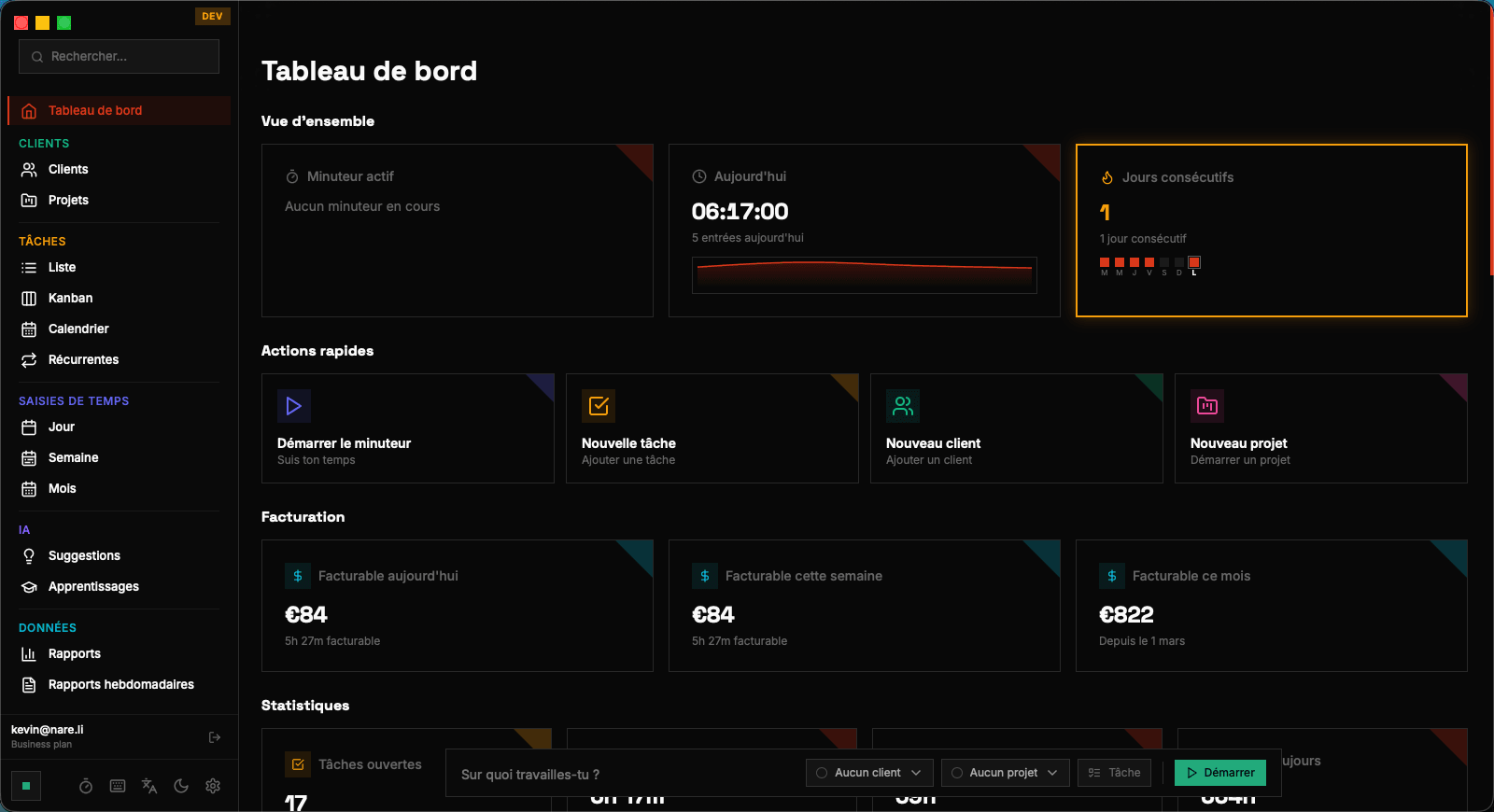
Nareli is built on a local-first architecture. This means the application runs entirely on your Mac and stores all data locally in SQLite databases. There is no cloud sync, no remote database, and no account required to use the core features. The app includes its own local server (running on port 4000 in development, 14000 in production) that handles all data operations. This architecture ensures that your data is always available, even without an internet connection, and that performance is consistently fast since there are no network round-trips for data queries.
Data Storage Locations
Nareli stores its data in two SQLite database files on your machine. In production, both databases are located in ~/Library/Application Support/Nareli/. During development, they are stored in ~/.nareli/. The local.db file contains all your business data: clients, projects, tasks, time entries, activities, suggestions, and settings. The cache.db file contains temporary data like Slack message caches and rate limit tracking. Both files are standard SQLite databases that you can inspect or back up with any SQLite-compatible tool.
# Production data location
~/Library/Application Support/Nareli/local.db # Business data
~/Library/Application Support/Nareli/cache.db # Temporary cache
# Development data location
~/.nareli/local.db
~/.nareli/cache.dbThese paths are specific to macOS. The Application Support directory is a standard macOS location for app data.
What Data Stays Local
All of your work data stays on your machine and is never uploaded to any external server. This includes: time entries (start times, end times, descriptions, durations), tasks (titles, descriptions, priorities, statuses), clients (names, colors, billing rates, contact info), projects (names, budgets, deadlines), activities (desktop activity logs captured for AI analysis), Slack message cache (messages fetched from Slack for AI processing), AI-generated suggestions (task and time entry suggestions), reports (generated from your local data), recurring task definitions and schedules, goals and streak data, and all application settings and preferences.
What Communicates with External Servers
Only two things in Nareli communicate with external servers. First, license verification: when you activate your license key, the app contacts nareli.app/api/verify/license to validate it and receive a signed token. This happens once at activation and periodically in the background. The only data sent is your license key and optionally your user ID. Second, the Slack integration: when enabled, Nareli connects to Slack's API to fetch messages from your selected channels. This communication is between your Mac and Slack's servers directly. No Slack data is sent to Nareli's servers.
License verification can be done offline after the initial activation using the cached signed token. See the License Activation documentation for details.
Slack Data Handling
When you connect Slack, Nareli fetches messages from your selected channels and caches them locally in cache.db. These messages are processed by the local AI model to generate task and time entry suggestions. Slack messages are never sent to Nareli's servers or any third-party service. The message cache is temporary and can be cleared at any time from Settings > Services. Channel selection gives you fine-grained control over which conversations Nareli can access.
AI Processing
Nareli uses Ollama, a local large language model runtime, for all AI features. Ollama runs entirely on your Mac and processes data without sending anything to external AI services. The AI analyzes your Slack messages and desktop activity to generate intelligent suggestions for tasks and time entries. All inference happens locally, meaning your work context, messages, and activity patterns never leave your machine. You need to install Ollama separately (ollama.ai) and have a compatible model downloaded for AI features to work.
# Install Ollama (required for AI features)
brew install ollama
# Pull a model
ollama pull llama3.2
# Ollama runs locally on port 11434
# Nareli connects to it automaticallyIf Ollama is not running or not installed, Nareli works perfectly fine without AI features. Time tracking, task management, and all other core features function independently.
Data Backup and Export
Since all your data is stored in standard SQLite database files, backing up is straightforward. Simply copy the local.db file from ~/Library/Application Support/Nareli/ to your backup location. You can use Time Machine, a manual copy, or any backup tool that supports file-level backups. For reporting purposes, Nareli also supports PDF export of reports, which can serve as a human-readable backup of your time tracking data. The SQLite files can be opened with any SQLite browser (such as DB Browser for SQLite) for direct inspection or data extraction.
# Back up your Nareli data
cp ~/Library/Application\ Support/Nareli/local.db ~/Desktop/nareli-backup.db
# Inspect with SQLite CLI
sqlite3 ~/Library/Application\ Support/Nareli/local.db ".tables"
# Or use DB Browser for SQLite
brew install --cask db-browser-for-sqliteDeleting Your Data
To delete all your Nareli data, quit the app completely and delete the data directory. This removes all time entries, tasks, clients, projects, settings, and cached data. The operation is irreversible, so make sure you have a backup if needed. If you only want to reset specific data (like clearing the Slack cache), you can do so from Settings within the app without deleting everything. Uninstalling the app from Applications does not automatically delete the data directory, so you need to remove it manually if you want a clean uninstall.
# Quit Nareli first, then:
# Delete all data (irreversible!)
rm -rf ~/Library/Application\ Support/Nareli/
# Or delete only the cache
rm ~/Library/Application\ Support/Nareli/cache.dbDeleting your data does not affect your Nareli account or license. Your license key remains valid and you can start fresh by re-opening the app.
Related Documentation
How It Works
A deep dive into Nareli's architecture, local-first data philosophy, AI suggestion pipeline, and privacy-first design. Understand what happens under the hood when you track time, receive suggestions, and generate reports.
Getting Started
Everything you need to download, install, and set up Nareli on your Mac. From system requirements to your first timer session, this guide walks you through every step.
On this page