DocsOverviewGetting Started

Getting Started

Everything you need to download, install, and set up Nareli on your Mac. From system requirements to your first timer session, this guide walks you through every step.

System Requirements

Nareli runs natively on macOS 12 (Monterey) and later, supporting both Apple Silicon (M1, M2, M3, M4) and Intel-based Macs. Because Nareli is built with Tauri, the app is lightweight — typically under 30 MB on disk — and uses minimal system resources even when the floating timer bar is running in the background. For AI-powered suggestions, Nareli connects to a local Ollama instance running on your machine. Ollama requires at least 8 GB of RAM for smaller models, though 16 GB or more is recommended for optimal performance. If you don't plan to use AI features, Ollama is not required and Nareli will function perfectly as a standalone time tracker and task manager. An internet connection is only required for license activation and periodic license verification. All your time tracking, task management, and reporting data is stored locally in SQLite databases on your machine — Nareli never sends your work data to any external server.

Nareli is a macOS-exclusive application. Windows and Linux versions are not currently available.

Download and Installation

Download the latest version of Nareli from the official website at nareli.app. The download page automatically detects your Mac's architecture and offers the correct build — a universal binary that runs natively on both Apple Silicon and Intel processors. Once the .dmg file has downloaded, double-click it to mount the disk image. Drag the Nareli icon into your Applications folder, then eject the disk image. The first time you open Nareli, macOS Gatekeeper may display a security prompt since the app is distributed outside the Mac App Store. Click "Open" to confirm, and macOS will remember your choice for future launches. Nareli installs a lightweight background server process that manages your local database and handles GraphQL communication between the interface and your data. This server starts automatically when you launch the app and stops when you quit.

If macOS blocks the app, go to System Settings → Privacy & Security and click "Open Anyway" next to the Nareli entry.

First Launch and Initial Setup

When you launch Nareli for the first time, the app creates its data directory at ~/Library/Application Support/Nareli/. This folder contains your SQLite databases, configuration files, and cached data. In development mode, data is stored in ~/.nareli/ instead. The initial setup wizard guides you through a few quick configuration steps. You'll be asked to set your preferred timezone (auto-detected from your system settings), choose a default view for time entries (day, week, or month), and optionally configure your billing currency. These settings can all be changed later from the Settings panel. Nareli also asks for accessibility permissions on first launch. These permissions allow the floating timer bar to appear above other windows and enable desktop activity monitoring for AI-powered time entry suggestions. You can grant or skip these permissions during setup — the core time tracking features work without them.

Your data directory is automatically backed up by Time Machine. You can also manually copy the SQLite database files for safekeeping.

Activating Your License

After installation, enter your license key to activate Nareli. You can find your license key in the confirmation email sent after purchase. Open Settings → General and paste your license key into the activation field. Nareli verifies the key with the license server and activates your copy within seconds. Each license key supports activation on up to two Macs, so you can use Nareli on both your desktop and laptop. If you need to transfer a license to a new machine, deactivate it first from the Settings panel on your old Mac, or contact support for assistance. Nareli performs periodic license checks in the background, but these are lightweight and infrequent. If your Mac is offline, Nareli continues to function normally using a cached license validation. The app only requires an active internet connection during the initial activation.

Settings → General → License → Paste Key → Activate

Quick Tour of the Interface

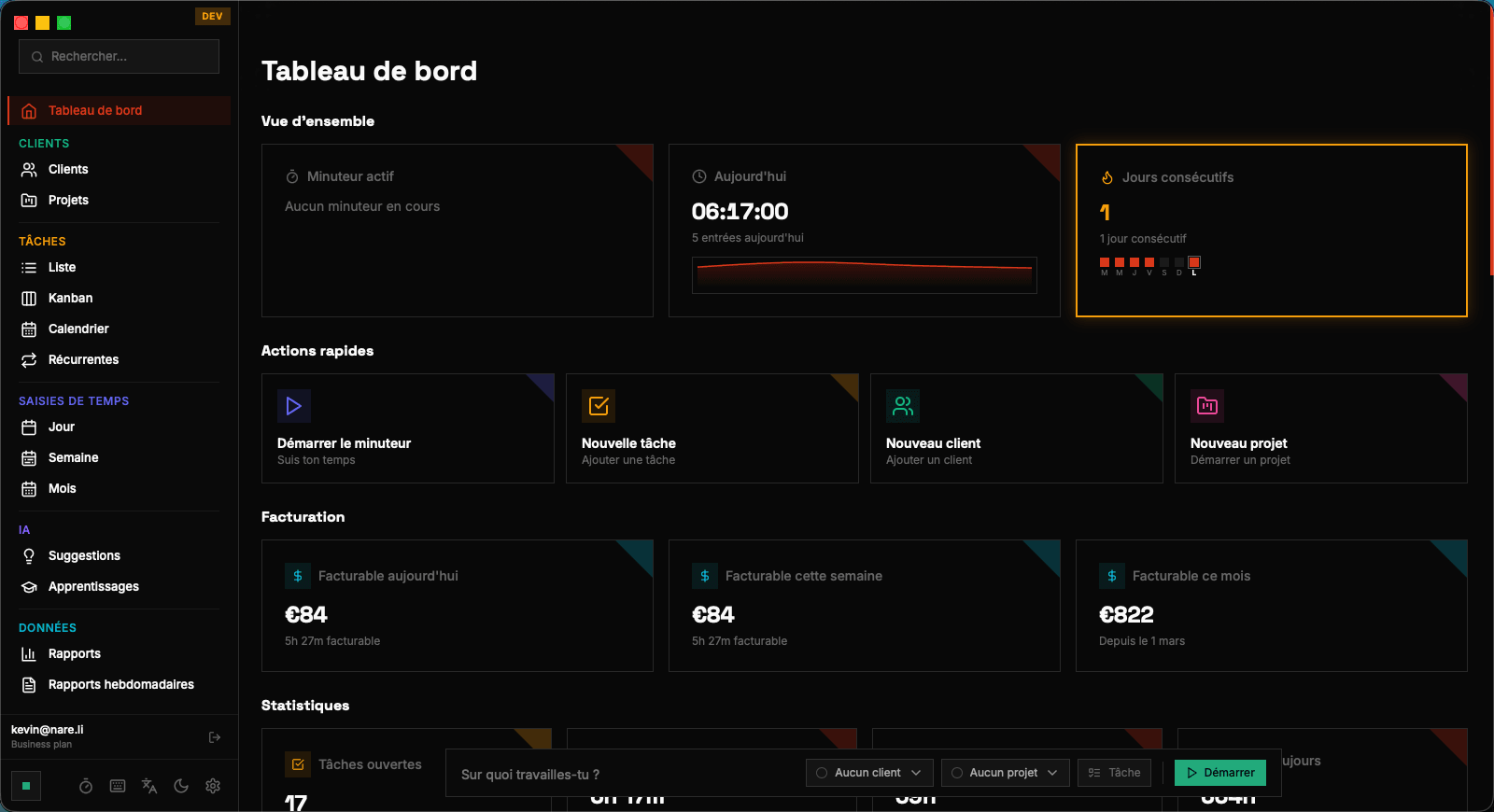
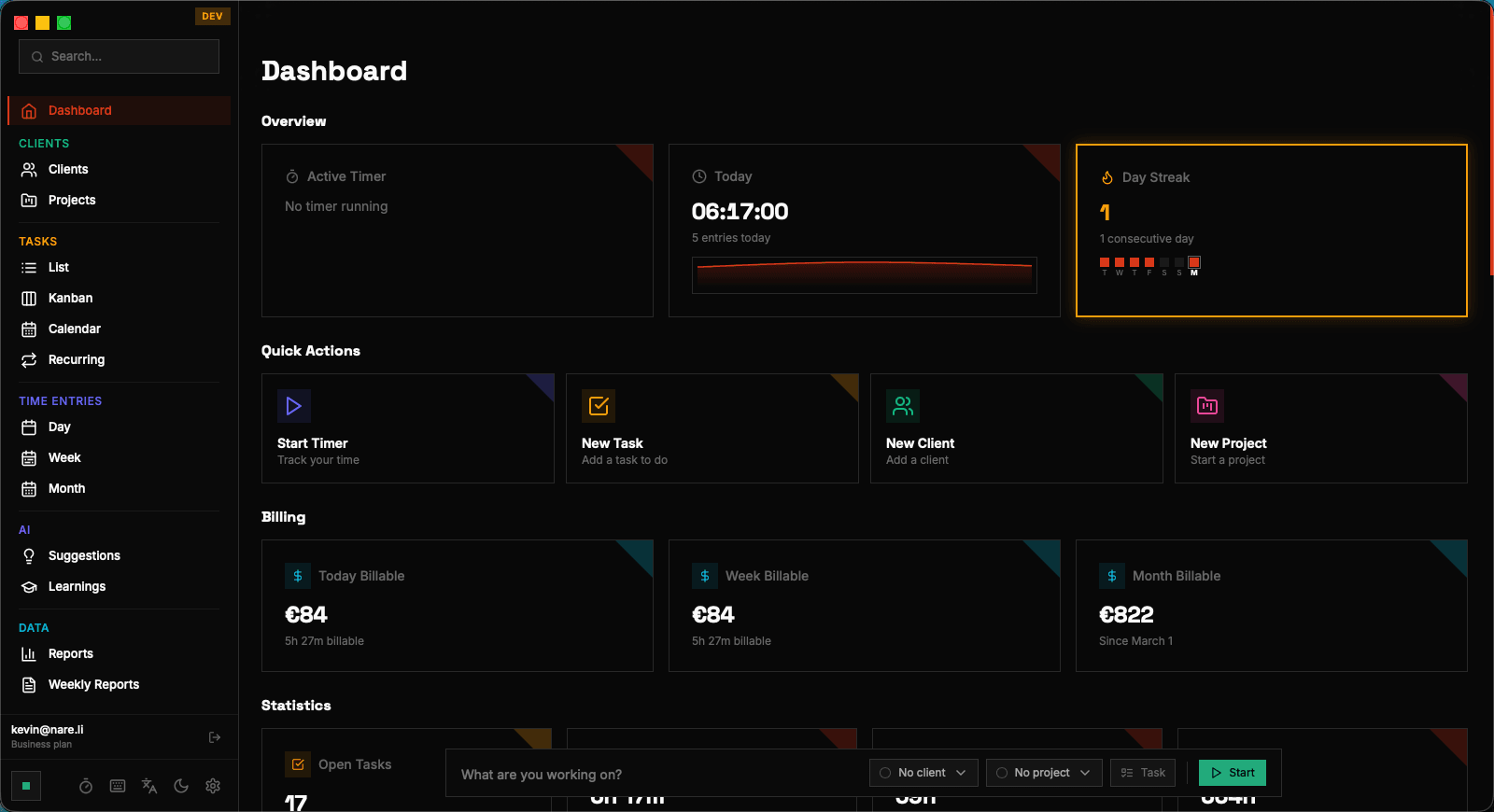
The Nareli interface is organized around a left sidebar that groups features into two sections: Workspace and Tracking. The Workspace section contains your Dashboard, Clients, Projects, and Tasks pages. The Tracking section holds Time Entries, Reports, Recurring Tasks, Suggestions, Learnings, and Weekly Reports. At the top of every page, you'll find the top bar with contextual actions — such as "New Time Entry" on the Time Entries page or "New Task" on the Tasks page. The floating timer bar sits above all other windows and provides instant access to start, pause, and stop time tracking without switching away from whatever application you're currently using. The Settings panel, accessible from the sidebar footer, is divided into tabs: General (timezone, preferences, license), Services (Ollama AI configuration), Listeners (Slack integration setup), and Dev (developer tools, visible only in development mode). Spend a few minutes exploring each section to familiarize yourself with the layout before diving into your first tracking session.

Use keyboard shortcut ⌘, to quickly open Settings from anywhere in the app.

Your First Time Entry

The fastest way to start tracking time is through the floating timer bar. Click the play button to start a new timer, and you'll see the bar's border animate to indicate an active recording session. While the timer runs, you can switch to any other application — the floating bar stays visible and accessible. When you're ready to stop, click the stop button on the floating bar. Nareli creates a new time entry with the recorded duration and opens a quick-edit popover where you can add a description, link the entry to a task or project, and mark it as billable or non-billable. You can also edit any time entry later from the Day View by clicking on its block in the timeline. For your very first session, try tracking 15–30 minutes of work to get comfortable with the flow. You'll quickly develop a rhythm of starting the timer when you begin a task and stopping it when you switch context. Over time, Nareli's AI will learn your patterns and start suggesting time entries automatically based on your desktop activity and Slack messages.

Getting Started | Nareli