Slack Integration
Connect Slack to Nareli to automatically capture work context from your conversations and generate intelligent task and time entry suggestions.
Overview
The Slack integration bridges the gap between your team conversations and your personal time tracking. Instead of manually cross-referencing Slack threads to figure out what you worked on and when, Nareli monitors your selected channels, analyzes the conversations using a local AI model, and generates actionable suggestions: new tasks to create, existing tasks to update, and time entries to log. This integration is designed to be a passive assistant that surfaces work you might otherwise forget to track. It runs in the background, processing messages at regular intervals, and presents its findings as suggestions you can accept or decline. You remain in full control of what enters your task list and timesheet.
The Slack integration is entirely read-only. Nareli never posts messages, reacts to messages, or modifies anything in your Slack workspace.
Setting Up the Slack Connection
To connect Slack, navigate to Settings and open the Services tab. You will find the Slack configuration section where you can enter your Slack API token. Nareli uses a user token (xoxp-) to access messages from channels you are a member of. To obtain your token, you will need to create a Slack app in your workspace or use an existing one with the appropriate scopes. The required scopes are channels:history and channels:read for public channels, and groups:history and groups:read if you want to monitor private channels you belong to. Nareli's settings page provides step-by-step guidance for this process. Once you have entered your token, Nareli will validate the connection and display your workspace name as confirmation. The token is stored securely in your macOS Keychain, not in a plain configuration file, ensuring your credentials are protected by the operating system's native security infrastructure.
Your Slack token never leaves your machine. It is stored in the macOS Keychain and used exclusively by the local Nareli server to poll messages.
Selecting Channels to Monitor
After connecting your workspace, you need to select which channels Nareli should monitor. Navigate to the Listeners tab in Settings to configure your channel selection. Nareli will display a list of channels you are a member of, and you can toggle monitoring on or off for each one. Be selective about which channels you monitor. The integration works best with channels directly related to your work: project channels, team channels, and channels where task-related discussions happen. Monitoring social channels or high-volume announcement channels will generate noise without adding useful context to your time tracking. You can change your channel selection at any time. Adding a new channel starts monitoring from that point forward; Nareli does not retroactively process historical messages from newly added channels. Removing a channel stops future processing but does not delete any suggestions or data that was already generated from that channel's messages.
Channel-to-Project Mapping
To get the most accurate suggestions, you can map Slack channels to specific Nareli projects. When a channel is mapped to a project, any suggestions generated from that channel's messages will automatically be associated with the correct project. This eliminates the need to manually reassign project context when accepting suggestions. Channel mappings are configured in the Listeners settings. For each monitored channel, you can optionally select a project from your existing project list. If no mapping is set, Nareli's AI will attempt to infer the project from message content, but explicit mappings are more reliable and produce higher-quality suggestions. A common setup is to map each project's dedicated Slack channel to its corresponding Nareli project. For example, map #proj-website to your "Website Redesign" project and #proj-api to your "API Development" project. Cross-functional channels that span multiple projects can be left unmapped, and the AI will do its best to categorize suggestions based on context.
Channel-to-project mappings can be viewed and managed on the Learnings page, which shows a table of all configured mappings and the suggestions they have produced.
How Message Processing Works
The Slack processing pipeline operates in four stages: poll, cache, analyze, and suggest. Understanding this pipeline helps you know what to expect and how to troubleshoot if suggestions are not appearing as expected. In the poll stage, Nareli periodically fetches new messages from your monitored channels using the Slack API. The polling interval is designed to stay well within Slack's rate limits while still capturing messages in near-real-time. Messages are fetched in chronological order, and Nareli tracks the last processed message timestamp for each channel to avoid reprocessing. Fetched messages are cached locally in Nareli's cache database. This local cache serves two purposes: it ensures messages are available for analysis even if the Slack API is temporarily unreachable, and it provides the message history context that the AI needs to understand conversation threads and ongoing discussions. The cached messages are then enqueued for AI analysis. The analysis stage uses a local Ollama LLM to read the messages, understand the work context, and determine whether any actionable items should be surfaced. Finally, the AI generates suggestions that appear in your suggestion queue for review.
You can monitor the processing pipeline in real time through the system status indicator in Nareli's interface, which shows the current queue depth and processing state.
Types of Suggestions Generated
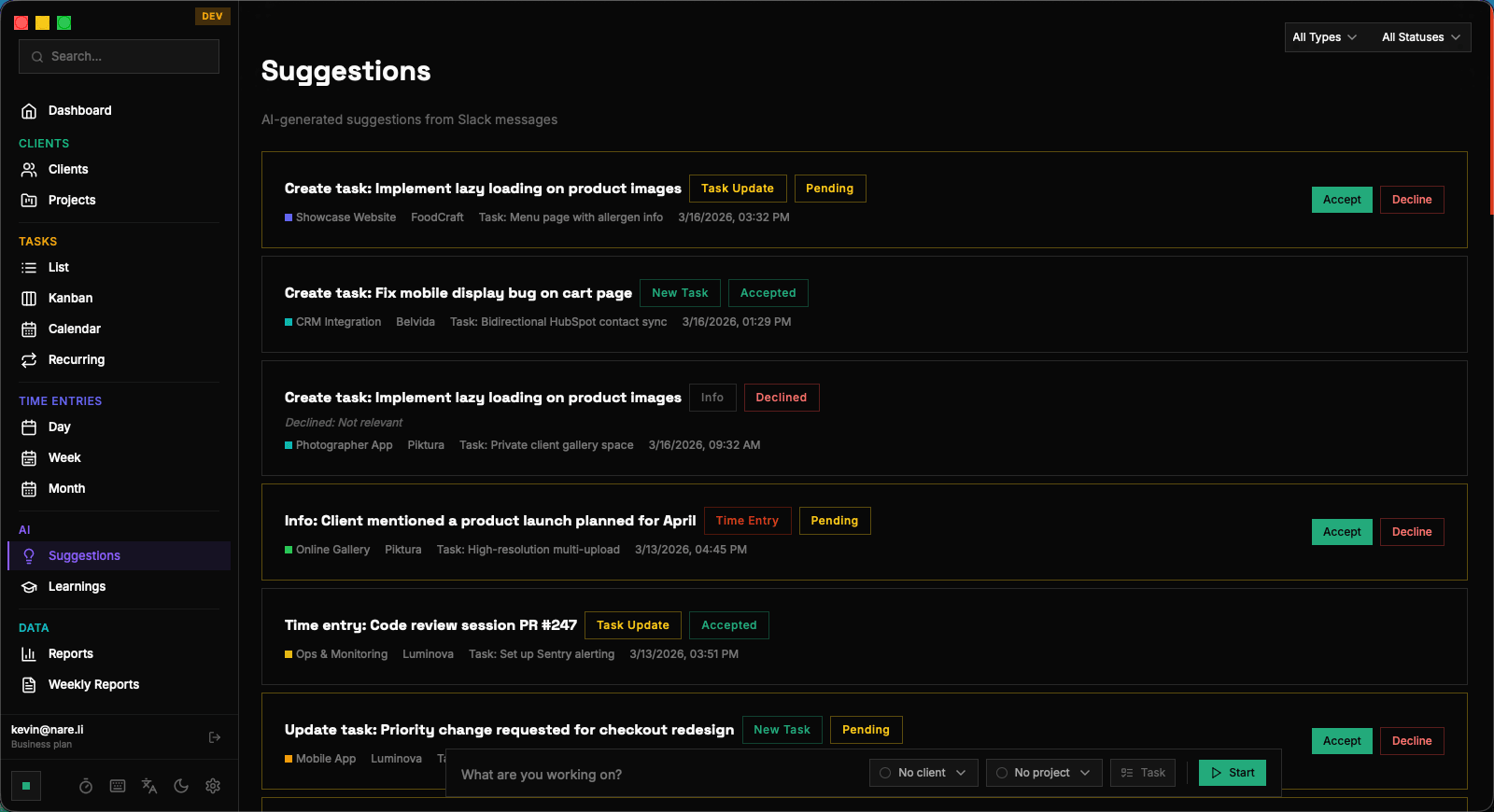
The Slack integration generates four types of suggestions, each designed to capture a different aspect of the work context revealed in your conversations. Task creation suggestions (task_create) are generated when the AI identifies a new piece of work discussed in Slack that does not match any existing task in your list. For example, if a teammate asks you to review a pull request or prepare a document, Nareli may suggest creating a task for that work. Task update suggestions (task_update) appear when the AI detects information relevant to an existing task. This might be a status change discussed in a thread, additional requirements mentioned in a conversation, or a deadline update. Accepting a task update suggestion modifies the existing task with the new context. Time entry creation suggestions (timeentry_create) are generated when the AI infers that you spent time on something based on your Slack activity. If you were actively discussing a topic in a project channel for an extended period, Nareli may suggest logging a time entry for that work. Informational suggestions (info) surface relevant context that does not require a specific action but might be useful for your awareness. These could include project status updates, decisions made in channels you monitor, or context that helps you understand the current state of a project.
Each suggestion includes a confidence indicator and a brief explanation of why the AI generated it, helping you quickly decide whether to accept or decline.
Accepting and Declining Suggestions
Suggestions appear in the Suggestions page and as suggestion blocks in your day view, integrated alongside your existing time entries. Each suggestion shows its type, the suggested content, the source channel, and the AI's reasoning. To accept a suggestion, click the accept button. For task creation suggestions, this creates a new task in your task list with the suggested title, description, and project assignment. For time entry suggestions, accepting creates a new time entry with the suggested start time, duration, and task association. You can modify any details before confirming. To decline a suggestion, click the decline button. Declined suggestions are removed from your active queue but are not deleted. Nareli's AI uses your accept and decline patterns as learning signals to improve future suggestions. Over time, the system learns which types of suggestions you find valuable and adjusts its output accordingly. You can also receive system notifications when new suggestions are generated, so you do not need to constantly check the suggestions page. These notifications are configurable in your settings.
Privacy and Data Handling
Privacy is a core design principle of Nareli's Slack integration. All message data stays entirely on your local machine. Messages fetched from Slack are cached in your local database, analyzed by a locally-running AI model (Ollama), and the resulting suggestions are stored locally. No message content, metadata, or analysis results are ever transmitted to external servers. Your Slack API token is stored in the macOS Keychain, the same secure storage used for your system passwords and certificates. The token is only accessed by the local Nareli server process and is never logged, exported, or included in any diagnostic data. The local message cache can be cleared at any time from the Settings page if you want to remove all cached Slack data. Clearing the cache does not affect any suggestions you have already accepted or the tasks and time entries that were created from them. It simply removes the raw message data used for analysis. Because the AI analysis runs locally through Ollama, your Slack messages are never sent to OpenAI, Anthropic, or any other cloud AI provider. The entire pipeline from message fetching to suggestion generation operates within the boundaries of your machine.
If you uninstall Nareli, all cached Slack data is removed along with the application's data directory. Nothing persists outside of your local Nareli installation.
Related Documentation
AI Suggestions
Nareli's AI-powered suggestion system analyzes your work patterns and generates intelligent recommendations for tasks, time entries, and workflow improvements.
Activity Analysis
Nareli captures and analyzes your desktop activity to automatically suggest time entries, helping you account for every productive minute of your day.
Task Management
Organize your work with Nareli's flexible task management system. Switch between list, kanban, and calendar views, create tasks manually or from AI suggestions, and link everything to your time tracking workflow.
On this page