DocsFeaturesRecurring Tasks

Recurring Tasks

Automate repetitive work with recurring task templates that create tasks on a schedule you define.

Overview

Recurring tasks let you automate the creation of repetitive work items so you never forget a standup, weekly report, or monthly review. Instead of manually creating the same task every day or week, you define a template once and Nareli creates fresh task instances on the schedule you specify. Recurring tasks are first-class citizens in Nareli. They appear in your task list just like any other task, but they are generated automatically by the recurring task engine that runs in the background. Each generated instance is a normal task you can track time against, mark complete, or modify without affecting future instances.

Recurring tasks are created at the start of each scheduled period, so a daily recurring task will appear in your task list at the beginning of each day.

Creating a Recurring Task

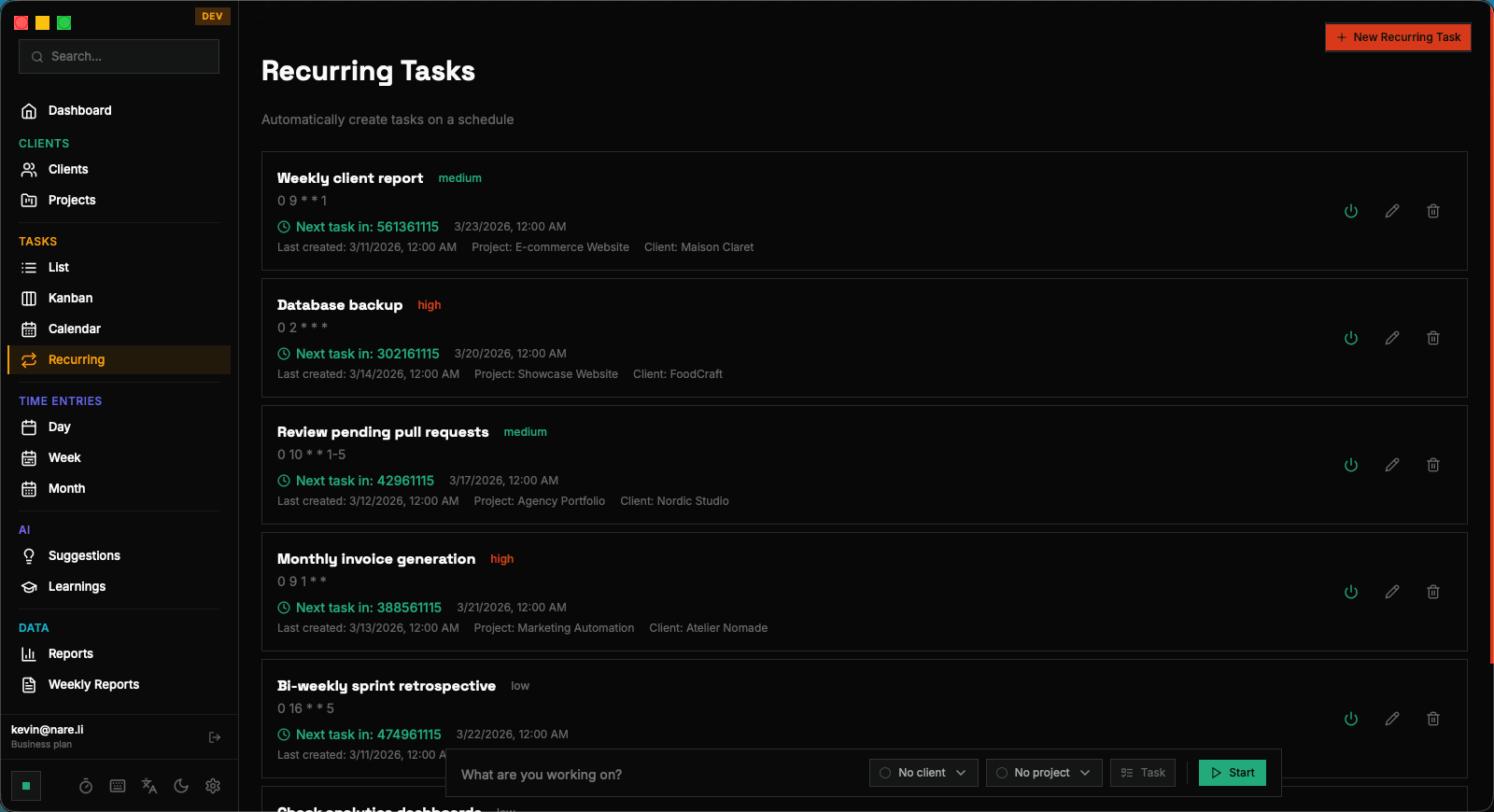
To create a recurring task, navigate to the Recurring Tasks page from the sidebar. Click the "New Recurring Task" button to open the creation form. You will need to provide a task title, an optional description, and assign it to a project. The project assignment ensures that time tracked against generated instances rolls up into the correct project reports. Next, choose your recurrence pattern. Nareli offers several built-in patterns for common scheduling needs: daily, weekly, and monthly. For each pattern you can configure additional options such as which days of the week the task should recur on, or which day of the month it should be created. Once saved, the recurring task template becomes active immediately. Nareli will evaluate the schedule and create the first task instance if one is due. You can see all your recurring task templates on the Recurring Tasks page, where each template shows its schedule, next occurrence, and the number of instances it has generated so far.

Recurrence Patterns

Nareli supports several recurrence patterns to cover a wide range of scheduling needs. The simplest is the daily pattern, which creates a new task instance every day. This is ideal for standups, daily reviews, or any task you perform every working day. The weekly pattern lets you select one or more specific days of the week. For example, you might create a "Team Sync" task that recurs every Monday and Thursday. The monthly pattern creates a task on a specific day of each month, useful for monthly reports, invoicing reminders, or recurring administrative work. For more flexibility, you can use the "every N days" pattern to create tasks at a custom interval. Set it to every 3 days for a task that should happen roughly twice a week, or every 14 days for a biweekly cadence. This gives you fine-grained control over the spacing between task instances.

When using the weekly pattern with multiple days selected, each selected day generates its own task instance. A Monday-Wednesday-Friday pattern creates three tasks per week.

Cron Expression Support

For advanced scheduling needs that go beyond the built-in patterns, Nareli supports cron expressions. Cron expressions are a compact notation for defining complex schedules, widely used in software engineering for job scheduling. A cron expression consists of five fields: minute, hour, day of month, month, and day of week. In Nareli, the minute and hour fields control when during the day the task is created, while the remaining fields define which days the task should recur. Cron expressions let you define schedules that would be difficult or impossible with the simple patterns. For example, you could schedule a task for the first Monday of every month, or every weekday except during a specific month.

# Every weekday at 9:00 AM
0 9 * * 1-5

# First Monday of every month
0 9 1-7 * 1

# Every other Friday
0 9 * * 5/2

# Quarterly review (Jan, Apr, Jul, Oct on the 1st)
0 9 1 1,4,7,10 *

If you are not familiar with cron syntax, use one of the built-in recurrence patterns instead. The cron option is provided for users who need precise scheduling control.

Auto-Creation Behavior

The recurring task engine runs in the background as part of Nareli's server process. It periodically checks all active recurring task templates and determines whether a new instance should be created based on the schedule and your configured timezone. When a new instance is due, Nareli creates a standard task with the title, description, and project from the template. The created task behaves exactly like any manually created task: you can edit its title, change its description, track time against it, and mark it as complete. Modifications to a generated instance do not affect the template or future instances. The engine is timezone-aware, so a daily recurring task will be created according to your local day boundaries, not UTC midnight. This ensures that your recurring tasks align with your actual workday regardless of your location.

If you open Nareli after being offline, any missed instances for past periods will be created retroactively so you do not lose track of scheduled work.

Skipping and Rescheduling

Sometimes you need to skip a particular occurrence without disabling the entire recurring template. For example, you might want to skip a daily standup task on a public holiday, or postpone a weekly review because you are traveling. To skip the next occurrence, you can simply delete or ignore the generated task instance. The recurring task engine will continue to create future instances on schedule. The template itself is unaffected by any changes you make to individual instances. If you need to change the schedule going forward, edit the recurring task template directly. Changes to the template's recurrence pattern take effect starting from the next scheduled occurrence. Already-created instances remain unchanged, so you do not lose any tracked time or completed work.

Managing Active Templates

The Recurring Tasks page provides a centralized view of all your templates. Each template displays its title, associated project, recurrence pattern in human-readable form, and whether it is currently active or paused. You can pause a recurring task template to temporarily stop it from generating new instances. This is useful during vacations or project breaks when you do not want tasks piling up. When you resume the template, it picks up from the current date rather than retroactively creating instances for the paused period. To permanently stop a recurring task, you can delete the template. Deleting a template does not remove any previously generated task instances or the time entries tracked against them. Your historical data is always preserved. You can also duplicate an existing template to create a variation with a different schedule or project assignment, saving you from re-entering all the details from scratch.

Best Practices

Keep your recurring task titles descriptive but concise. Since a new instance is created on each occurrence, clear naming helps you quickly identify tasks in your daily view. Include context like the meeting name or deliverable type rather than generic labels. Assign recurring tasks to the correct project from the start. This ensures that all time tracked against generated instances is automatically attributed to the right project in your reports. Changing the project on the template updates future instances but does not retroactively reassign past ones. Review your active recurring tasks periodically. Over time, responsibilities shift and meetings get restructured. A quick audit of your templates once a month helps keep your task list relevant and prevents unnecessary clutter from outdated recurring items.

You can view all instances generated by a specific template to get a history of how much time you have spent on that recurring work over time.

Recurring Tasks | Nareli