DocsFeaturesTask Management

Task Management

Organize your work with Nareli's flexible task management system. Switch between list, kanban, and calendar views, create tasks manually or from AI suggestions, and link everything to your time tracking workflow.

List View: Sortable Table

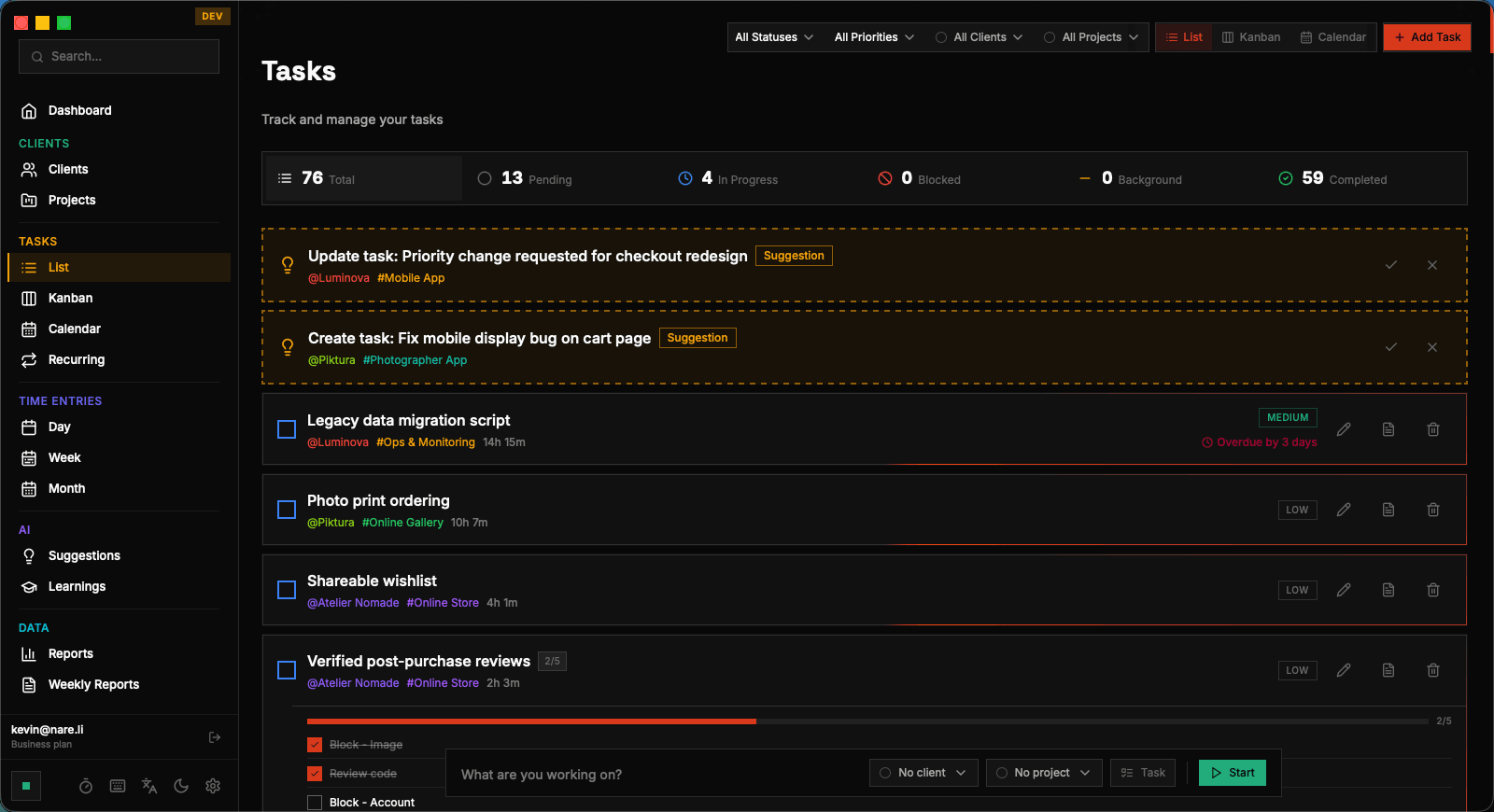
The List View presents your tasks as a sortable, filterable table that excels when you need to scan a large number of tasks quickly. Each row displays the task title, status, priority, assigned project, due date, and total tracked time. Click any column header to sort by that field — click again to reverse the sort order. The filter bar at the top of the List View lets you narrow down tasks by status (open, in progress, completed, archived), priority level, project, client, or a combination of these. Text search filters tasks by title and description content. Active filters are shown as removable chips, making it easy to build and modify complex filter combinations. List View is the most information-dense layout and is ideal for batch operations. You can select multiple tasks using checkboxes and apply bulk actions — change status, reassign to a different project, adjust priority, or archive completed work. For teams of one, this batch capability is particularly useful during weekly reviews when you need to clean up and reorganize your task backlog.

Sort by "Total Time" to quickly identify tasks that are consuming more hours than expected.

Kanban View: Visual Boards

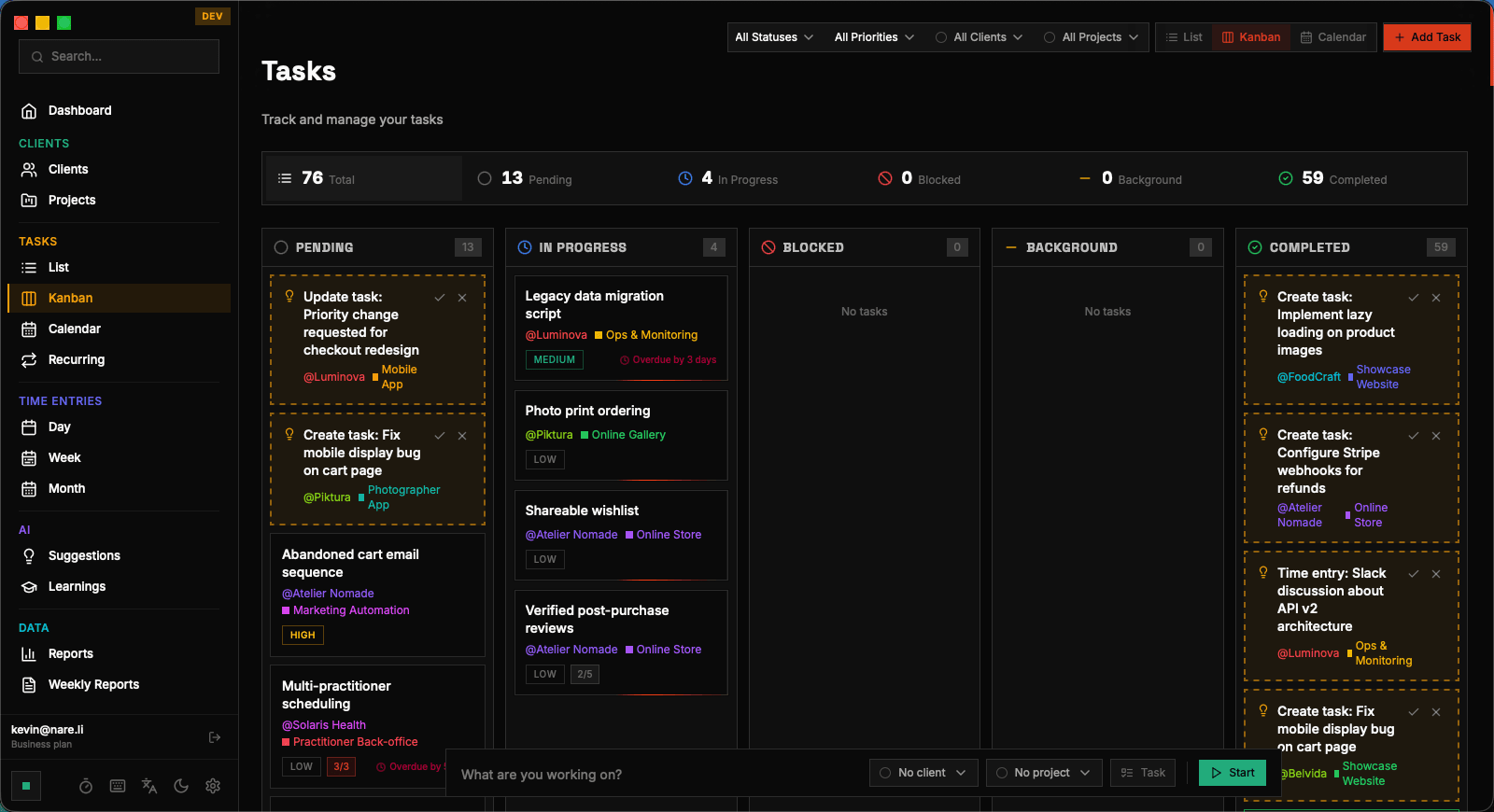
The Kanban View organizes your tasks into vertical columns representing their current status. The default columns are Backlog, To Do, In Progress, and Done. Drag and drop tasks between columns to update their status — the change is saved immediately and reflected across all views. Each task card on the kanban board shows the task title, priority indicator (color-coded dot), project name, and due date if set. Cards with overdue dates are highlighted with a warning accent so they stand out visually. The card layout is compact enough to display many tasks per column while showing the essential information at a glance. The Kanban View is especially powerful for managing your daily and weekly workflow. Move tasks from Backlog to To Do during your Monday planning session, advance them to In Progress as you begin working, and drag them to Done when complete. This visual flow creates a natural rhythm and provides satisfaction as you see cards move from left to right throughout the week. You can create new tasks directly in any column by clicking the "+" button at the bottom of that column. The new task inherits the status corresponding to the column you created it in, saving you a step. Quick-create only asks for the task title — you can fill in additional details by clicking on the card afterward.

Drag tasks between columns to change their status instantly. The kanban board auto-saves every change.

Calendar View: Due Date Planning

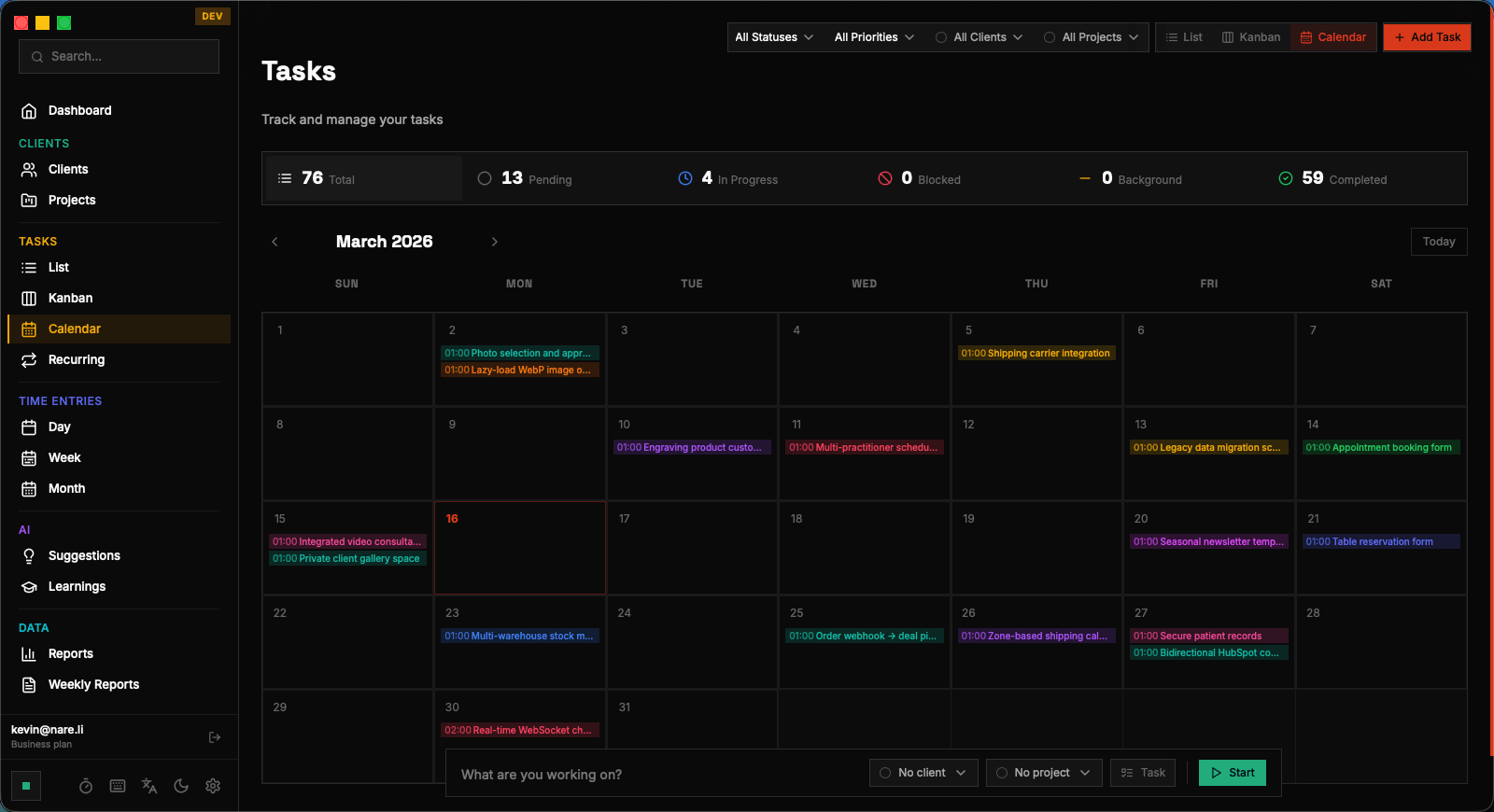
The Calendar View plots your tasks on a monthly calendar based on their due dates. Tasks without due dates don't appear in this view, which makes it a focused planning tool rather than a comprehensive task list. Each day cell shows the tasks due on that date, color-coded by project. You can drag tasks between days to reschedule their due dates — a quick and intuitive way to adjust your timeline when priorities shift. If too many tasks are due on a single day, the cell expands and shows a scrollable list. Clicking on a task opens its detail view where you can edit all properties. The Calendar View is most useful for deadline management and workload balancing. A quick glance reveals whether your upcoming week is overloaded or has capacity for additional work. Combined with the time estimates from linked time entries, you can make informed decisions about what to commit to and what to push back.

Tasks without due dates won't appear in Calendar View. Use List or Kanban View to find and assign dates to unscheduled tasks.

Creating and Editing Tasks

Create a new task by clicking the "New Task" button in the top bar of the Tasks page. The creation form captures the task title (required), description (optional rich text), status, priority, project assignment, due date, and time estimate. Only the title is required — all other fields can be left blank and filled in later as the task takes shape. The task detail view opens when you click on any task from any view. Here you can edit all fields, view the complete history of time entries linked to this task, and see any AI suggestions related to it. The description field supports plain text with enough room for detailed notes, acceptance criteria, or reference links. Tasks can also be created from other parts of the app. When editing a time entry, you can create a new task inline. When accepting a "task_create" suggestion from the AI, the task is created automatically with details extracted from your Slack messages or activity data. These entry points ensure that capturing a task is always a low-friction action, regardless of where you are in the app. To delete a task, open its detail view and click the delete button. Nareli will warn you if the task has linked time entries, since deleting the task unlinks (but does not delete) those entries. Completed tasks can alternatively be archived, which hides them from active views while preserving the data for reports.

Task fields:
  Title        (required)
  Description  (optional)
  Status       Backlog | To Do | In Progress | Done
  Priority     None | Low | Medium | High | Urgent
  Project      (optional link)
  Due Date     (optional)
  Estimate     (optional hours)

Priority Levels and Statuses

Nareli uses five priority levels: None, Low, Medium, High, and Urgent. Priority is indicated by a colored dot on task cards and rows — gray for None, blue for Low, yellow for Medium, orange for High, and red for Urgent. You can filter and sort by priority in all views, making it easy to focus on what matters most. Task statuses follow a simple linear flow: Backlog → To Do → In Progress → Done. Backlog is for tasks that are captured but not yet scheduled for work. To Do means the task is planned for the current period. In Progress indicates active work. Done marks completion. These statuses map directly to the Kanban View columns. There is no enforced workflow — you can move a task from any status to any other status at any time. This flexibility accommodates the reality of solo work, where tasks often jump from Backlog directly to In Progress when priorities shift unexpectedly. The status history is not tracked, keeping the system simple and focused on the current state of your work. Archiving provides a fifth implicit state for tasks that are completed and no longer relevant to your active workflow. Archived tasks are hidden from default views but remain in the database and appear in historical reports. You can unarchive a task at any time to bring it back into your active task list.

Use the Urgent priority sparingly. When everything is urgent, nothing is — reserve it for truly time-sensitive tasks.

Linking Tasks to Projects and Clients

Every task can be optionally linked to a project, and since projects are linked to clients, this creates a natural hierarchy: Client → Project → Task → Time Entry. This hierarchy is the foundation of Nareli's reporting system — it lets you generate accurate time and billing reports at any level of granularity. When you assign a task to a project, the task inherits the project's color coding. This color flows through to time entries and appears in the Day View timeline, making it visually obvious which client and project each block of time belongs to. Changing a task's project assignment updates the color coding everywhere immediately. Tasks without a project assignment are considered "standalone" tasks. They appear in a dedicated section in filtered views and are excluded from project-based reports. Standalone tasks are fine for personal to-dos and one-off activities that don't belong to any client engagement. However, linking tasks to projects whenever possible yields the richest data for reports and productivity analysis. You can batch-assign tasks to a project from the List View. Select multiple tasks using checkboxes, then use the bulk action menu to assign them all to the same project in a single operation. This is especially useful when you're setting up a new project and need to reorganize existing tasks under it.

Linking tasks to projects ensures your time reports are accurate. Unlinked tasks won't appear in project or client reports.

AI-Powered Task Suggestions

Nareli's AI system generates task suggestions from two sources: Slack messages and desktop activity analysis. When the Slack integration detects a conversation about a piece of work that doesn't match any existing task, it creates a "task_create" suggestion with a proposed title and description extracted from the message context. Task suggestions appear in the Suggestions page with a clear label indicating their source (Slack channel name or activity type). Each suggestion shows the proposed task details and the evidence that triggered it — for example, a quoted Slack message or a summary of the desktop activity pattern. This transparency lets you evaluate whether the suggestion is relevant before accepting it. Accepting a task suggestion creates the task immediately with the proposed details. You can modify the title, description, priority, and project assignment in the same action — the acceptance form pre-fills with the AI's suggestions but lets you override any field. Declined suggestions are recorded so the AI can learn from your preferences over time. The AI also generates "task_update" suggestions when it detects information relevant to existing tasks. For example, if someone mentions a deadline change in Slack for a task you're already tracking, Nareli might suggest updating the due date. These update suggestions show a diff-style comparison of the current and proposed values, making it easy to review the change before applying it.

Task suggestions require Ollama to be running and configured. Without AI, you can still create all tasks manually.

Task Management | Nareli