Projects & Clients
Manage your clients with color-coded profiles and billing rates, organize work into projects with budgets and deadlines, and track progress across your entire portfolio.
Client Management
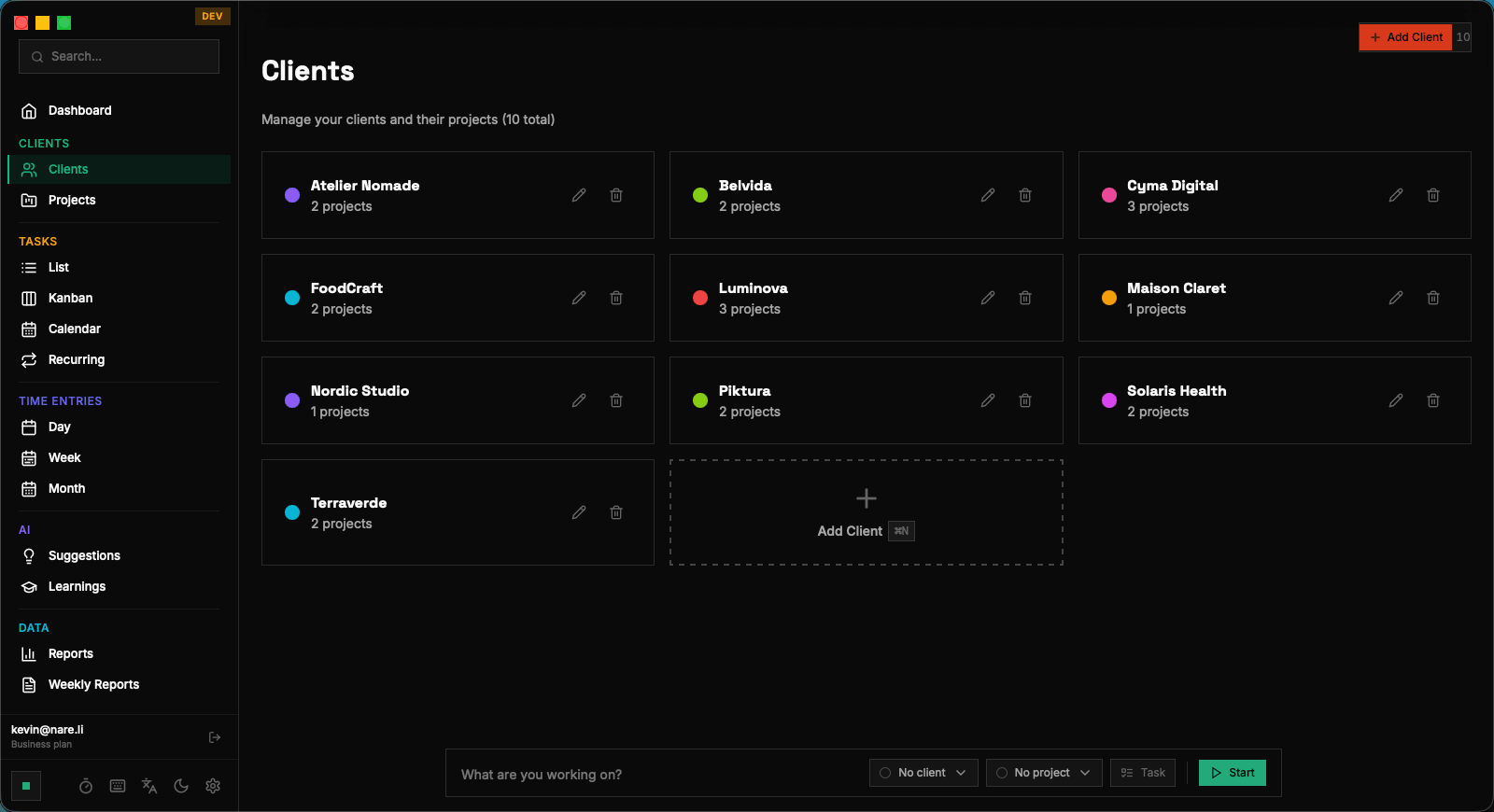
Clients are the top-level organizational unit in Nareli. Every client profile captures the client's name, a color code for visual identification, contact information, and default billing rate. The color you assign to a client flows through to all their projects, tasks, and time entries, creating a consistent visual language across the entire app. Creating a client is straightforward — click "New Client" on the Clients page and fill in the details. The color picker offers a curated palette of distinct, accessible colors designed to remain distinguishable even when multiple clients appear side by side on the Day View timeline. You can also enter a custom hex color if you prefer to match a client's brand colors. The Clients page displays all your clients in a grid of profile cards. Each card shows the client name, color swatch, number of active projects, total hours tracked, and total billable amount. Clicking a card opens the client detail view, which lists all associated projects with their individual statistics. This hierarchical navigation makes it easy to drill from a client overview down to specific project data. Clients can be archived when an engagement ends. Archived clients are hidden from the default view and from dropdown selectors when creating new projects or tasks, but their historical data remains fully intact for reporting. You can unarchive a client at any time if the engagement resumes.
Choose visually distinct colors for your top clients. Their colors appear throughout the app — in timelines, reports, and charts.
Creating and Configuring Projects
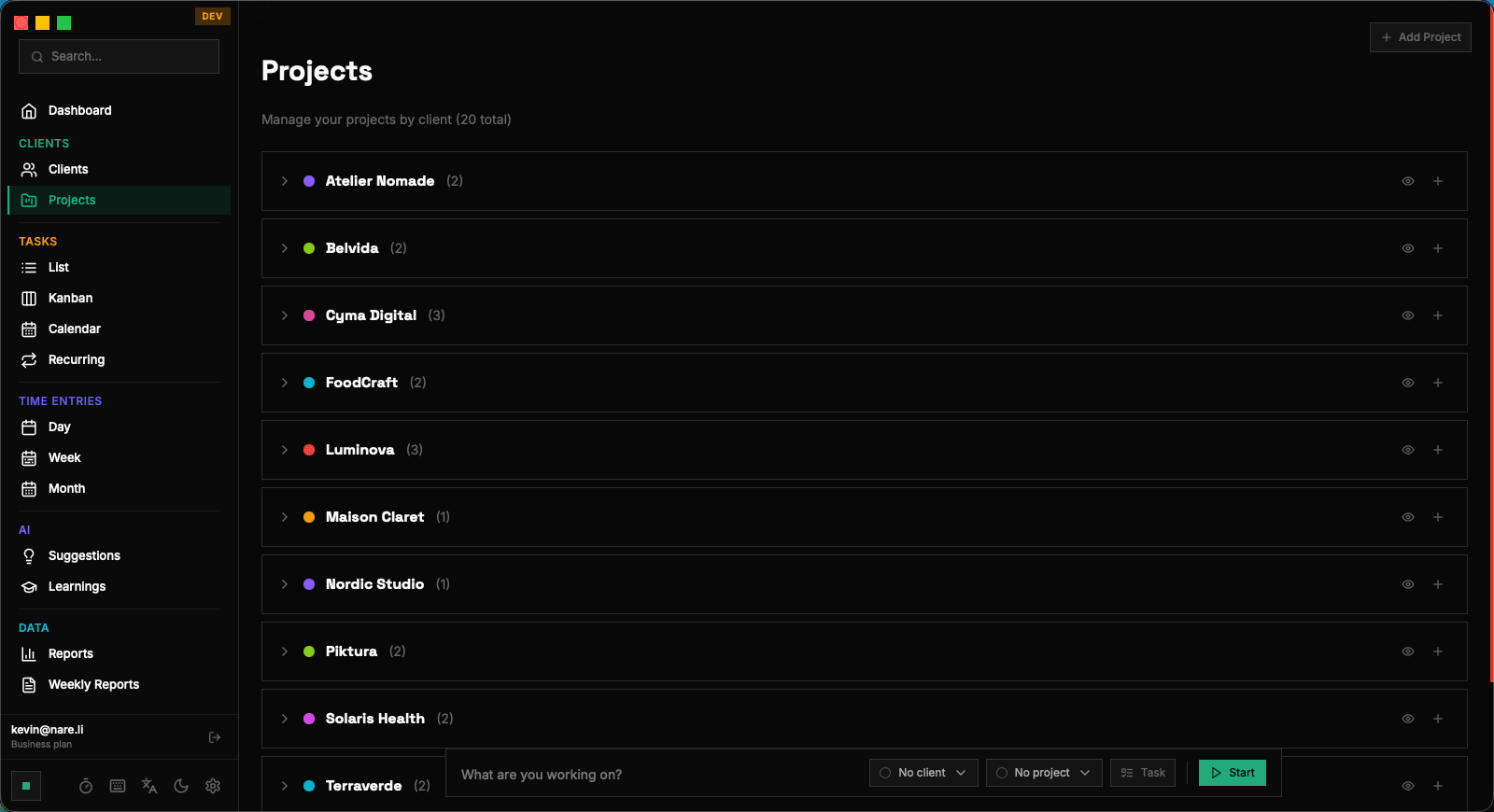
Projects belong to clients and represent distinct bodies of work. When you create a new project, you assign it to a client (required), give it a name, and optionally set a budget (in hours or currency), deadline, and description. The project inherits its color from the parent client, though you can override this with a project-specific color if needed. Project budgets can be defined in two ways: as a total number of hours or as a monetary amount. Hour-based budgets are tracked against the total duration of linked time entries. Monetary budgets are calculated using the billable rate — either the project-specific rate, the client's default rate, or the entry-level rate, in that order of precedence. Budget progress is displayed as a percentage on the project card and detail view. The project detail view provides a comprehensive dashboard for that specific body of work. You'll see total hours tracked, budget utilization, a list of all linked tasks with their statuses, and a mini timeline showing recent time entries. This single-page summary answers the question "how is this project going?" without needing to generate a formal report. Projects support a description field for capturing scope notes, deliverables, and reference links. While Nareli doesn't include document management, the description field is a convenient place to paste links to external specs, shared drives, or communication channels relevant to the project.
Set project budgets early — even rough estimates help you catch overruns before they become problems.
Billing Rates and Currency
Nareli supports flexible billing rate configuration at multiple levels. You can set a default hourly rate on a client profile, override it at the project level, or set rates on individual time entries for maximum granularity. When calculating billable amounts, Nareli uses the most specific rate available: entry rate → project rate → client rate. Billing rates are stored as numeric values alongside your chosen currency. Nareli supports all major currencies and displays amounts using the appropriate symbol and decimal format. The currency setting is global (configured in Settings → General) and applies to all billing calculations and report outputs. Time entries are individually marked as billable or non-billable. By default, new entries linked to a project with a billing rate are marked billable, but you can toggle this on any entry. Reports break down your time into billable and non-billable categories, showing both hours and monetary amounts. This distinction is essential for understanding your effective hourly rate and utilization percentage. The billable/non-billable split also appears in Dashboard charts, where you can visualize the ratio over time. A healthy freelance practice typically shows 60–80% billable utilization — tracking this metric in Nareli helps you identify when administrative overhead is eating into revenue-generating work.
Mark internal meetings, admin work, and learning time as non-billable to maintain accurate utilization metrics.
Tracking Project Progress
Project progress in Nareli is measured through two lenses: task completion and budget consumption. The task completion percentage shows how many of the project's linked tasks are in the "Done" status versus total tasks. The budget consumption percentage shows how much of the allocated budget (hours or monetary) has been used by tracked time entries. These two metrics together tell a powerful story. If task completion is at 80% but budget consumption is at 95%, you're running over budget. If task completion is at 40% but budget consumption is only at 20%, you're ahead of schedule. Nareli displays both percentages on project cards with visual progress bars, making these comparisons instant. The project detail view includes a time breakdown chart showing hours per task. This visualization reveals where time is being spent within a project and can highlight tasks that are consuming disproportionate effort. If one task accounts for 60% of the project's total time, it might need to be broken into smaller sub-tasks or re-scoped. Project status is implicit in Nareli — there's no explicit "status" field on projects. Instead, a project is considered active if it has unfinished tasks or recent time entries, and dormant if it has had no activity for an extended period. You can archive a project to explicitly mark it as complete and remove it from active views.
Compare task completion percentage against budget consumption to catch scope or budget issues early.
Archiving Completed Projects
When a project is finished, archiving it removes it from active lists, dropdown menus, and the default Projects page view. Archived projects are not deleted — all their data (tasks, time entries, billing information) is preserved and continues to appear in historical reports and date-filtered queries. To archive a project, open its detail view and click the archive button. Nareli will show a confirmation dialog summarizing what will happen: the project disappears from active views, its tasks are hidden from the active task list, and the project will no longer appear in dropdown selectors for new time entries. None of this affects existing data. You can view archived projects by toggling the "Show Archived" filter on the Projects page. From there, you can unarchive any project to bring it back to active status. Unarchiving restores the project and its tasks to all active views, exactly as they were before archiving. Archiving is the recommended approach for completed client work rather than deleting projects. Deletion is permanent and removes all associated data from reports. Archiving gives you the clean, focused view of active work while maintaining a complete historical record for tax preparation, portfolio review, or future client re-engagement.
Always archive rather than delete completed projects. Your historical data is valuable for future reference and tax records.
Per-Client and Per-Project Reports
Every client and project in Nareli has built-in reporting accessible from their respective detail views. The client detail view shows total hours across all projects, total billable amount, and a time distribution chart breaking down hours by project. This client-level report is the quickest way to answer "how much time have I spent on this client overall?" Project-level reports go deeper, showing hours per task, billable vs. non-billable breakdown, budget utilization over time (displayed as a line chart), and a day-by-day log of time entries. These reports update in real-time as you track time, so you always have an accurate picture of project economics. For more advanced reporting needs — such as comparing multiple clients side-by-side or generating reports for custom date ranges — use the dedicated Reports page. The per-client and per-project views in the detail pages are designed for quick reference and day-to-day monitoring, while the Reports page offers the full suite of filtering, grouping, and export options. Both client and project reports can be exported as part of a larger report from the Reports page. Select the specific client or project in the report filters, customize the date range, and export to PDF for invoicing or record-keeping. The exported document includes the same charts and breakdowns visible in the app, formatted for print.
Use per-project reports for weekly check-ins and the Reports page for end-of-month invoicing and billing summaries.
Related Documentation
Time Tracking
Master Nareli's time tracking system — from the floating timer bar with animated state indicators to the day, week, and month views. Learn how to create, edit, and organize time entries efficiently.
Task Management
Organize your work with Nareli's flexible task management system. Switch between list, kanban, and calendar views, create tasks manually or from AI suggestions, and link everything to your time tracking workflow.
Reports
Generate detailed time and billing reports by client, project, or date range. Visualize your data with charts, break down billable and non-billable time, and export polished PDFs for invoicing.
On this page