DocsFeaturesReports

Reports

Generate detailed time and billing reports by client, project, or date range. Visualize your data with charts, break down billable and non-billable time, and export polished PDFs for invoicing.

Generating Reports

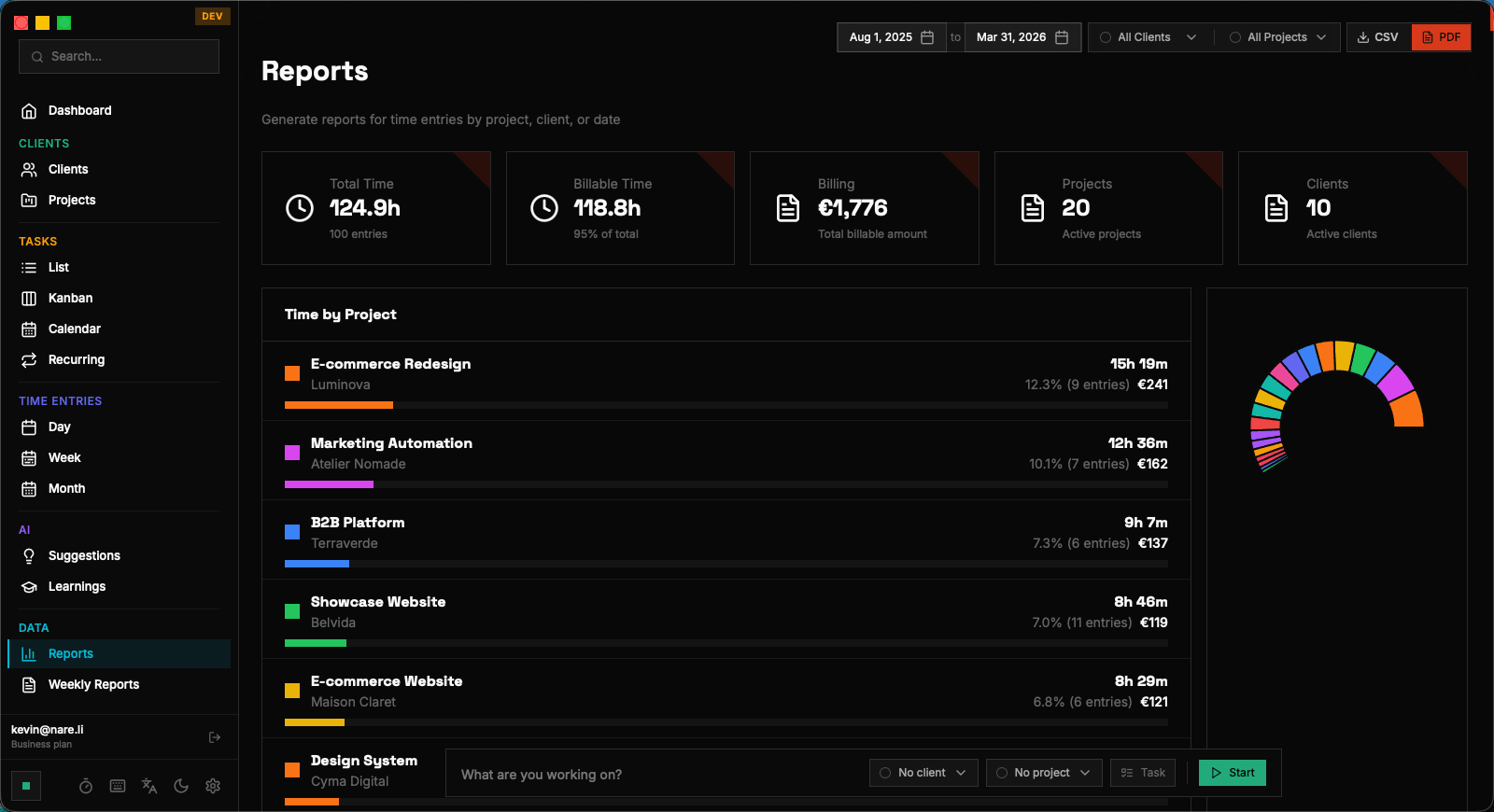
The Reports page is your central hub for analyzing tracked time across any dimension and time period. To generate a report, select a date range using the date picker at the top of the page, then optionally filter by client, project, or billable status. The report generates instantly — there's no waiting for a background job to complete, since all data lives in your local SQLite database. Date range selection offers both preset options and custom ranges. Presets include "This Week," "Last Week," "This Month," "Last Month," "This Quarter," and "This Year." For custom ranges, click the start and end date fields to open a calendar picker. The report updates in real-time as you adjust the range, making it easy to explore different periods without committing to a specific selection. Reports can be filtered at multiple levels simultaneously. Select a specific client to see all time across their projects, or drill down further to a single project. Add a billable status filter to focus exclusively on billable or non-billable time. These filters compose naturally — selecting Client A, Project X, and "Billable only" gives you exactly the data you need for invoicing that specific engagement. The report view is divided into three sections: summary cards at the top (total hours, billable hours, total amount), charts in the middle (time distribution and trend line), and a detailed entry table at the bottom. This top-down structure lets you start with the big picture and drill into specifics only when needed.

Reports generate instantly from your local database. There's no delay, even for reports spanning months of data.

Billable vs. Non-Billable Breakdown

Understanding the split between billable and non-billable time is critical for freelancers and consultants. Nareli's reports include a dedicated billable breakdown section that shows total billable hours, total non-billable hours, billable percentage, and the calculated revenue based on your billing rates. The billable breakdown is visualized as a split bar chart, where each day (or week, depending on the date range) shows billable time stacked above non-billable time. This temporal view reveals patterns — perhaps your non-billable time spikes on Mondays (team meetings, planning) and drops to near zero on Tuesdays through Thursdays (deep client work). Identifying these patterns helps you optimize your schedule for maximum billable utilization. Billable amounts are calculated using the cascading rate system: if a time entry has a specific rate, that's used; otherwise, the project rate applies; and finally, the client default rate. The report shows the effective average rate alongside total revenue, so you can see not just how much you earned but at what average hourly rate. This metric is especially valuable when you have different rates for different clients or types of work. The non-billable section can be further broken down by category if you've been disciplined about tagging time entries. Internal meetings, professional development, administrative work, and business development are common non-billable categories. While Nareli doesn't enforce categories, a consistent description convention (like prefixing descriptions with "[Admin]" or "[Learning]") lets you analyze where your non-billable time is going.

A healthy billable utilization rate for freelancers is typically 60-80%. Use the billable breakdown to track yours over time.

Visual Charts and Summaries

Nareli reports include several chart types that make your time data visually intuitive. The time distribution donut chart shows how total hours are allocated across clients or projects within the selected date range. Each segment is color-coded using the client or project colors you've configured, maintaining visual consistency with the rest of the app. The trend line chart plots your daily tracked hours over the report period. This line chart reveals whether your tracking consistency is stable, improving, or declining. The chart includes a horizontal reference line at your daily goal (if configured), making it easy to see which days exceeded the target and which fell short. For longer date ranges, the chart automatically switches to weekly aggregation to maintain readability. A horizontal stacked bar chart breaks down time by project within each client. This nested visualization is particularly useful in reports spanning multiple clients, as it shows not just the client-level distribution but also which projects within each client consumed the most time. The bar widths are proportional to hours, giving an immediate visual sense of relative allocation. All charts are rendered using the same data that powers the summary cards and detail table, ensuring perfect consistency. Hovering over any chart element shows a tooltip with exact figures — hours, percentages, and amounts — so you can extract precise numbers from the visual overview without switching to the table view.

Hover over any chart element to see exact figures. The visual overview is great for patterns; tooltips give you the precise numbers.

PDF Export for Invoicing

Nareli can export any report as a professionally formatted PDF document, suitable for attaching to invoices or sharing with clients. The PDF includes the same summary cards, charts, and detailed entry table visible in the app, laid out for clean printing on standard paper sizes. To export a report, configure your desired filters and date range, then click the "Export PDF" button in the top bar. Nareli generates the PDF locally on your machine — no data is sent to any server for rendering. The generated file is saved to your Downloads folder with a descriptive filename that includes the date range and filter criteria. The PDF layout is designed for professional presentation. The first page shows the report summary — total hours, billable amount, date range, and client/project filters. Subsequent pages include the time distribution chart, trend visualization, and the complete entry-by-entry table with dates, descriptions, durations, and rates. Page headers and footers include your configured business name and the report generation date. For recurring invoicing workflows, you can save commonly used filter combinations. While Nareli doesn't have a formal "saved reports" feature, the URL-based filter system means you can bookmark specific report configurations in your browser or create shortcuts. Combined with the "Last Month" date preset, generating your monthly invoice backup becomes a two-click operation: open the bookmark, click Export PDF.

Export workflow:
  1. Set date range (e.g., "Last Month")
  2. Filter by client
  3. Toggle "Billable only" if needed
  4. Click "Export PDF"
  5. Find PDF in ~/Downloads/

Customizing Report Filters

Report filters in Nareli are designed to be composable and intuitive. Each filter narrows the dataset independently, and multiple filters combine with AND logic — selecting Client A and "Billable" shows only billable entries for Client A, not all entries for Client A plus all billable entries for any client. The client filter dropdown lists all your active clients alphabetically, with archived clients available under a separate section at the bottom. Selecting a client automatically populates the project filter dropdown with only that client's projects, creating a cascading filter experience that prevents invalid combinations. You can also select a project directly without first selecting a client — the project filter searches across all clients. Date range filtering is the most impactful filter since it determines the temporal scope of all calculations. The preset options cover the most common reporting periods, but the custom date picker supports any arbitrary range. Reports spanning very long periods (a year or more) may contain thousands of entries, but since all processing happens locally in SQLite, performance remains snappy even with large datasets. The detail table at the bottom of the report supports additional in-report sorting. Click column headers to sort by date, duration, project, or amount. This table-level sorting doesn't affect the summary cards or charts — it's purely for exploring the line-item details within the currently filtered dataset. You can use this to find specific entries, identify outliers (unusually long or short sessions), or verify that all expected entries are present before exporting.

Filters combine with AND logic. Each filter narrows the results further, so start broad and add filters to focus.

Understanding Report Metrics

The summary cards at the top of every report present four key metrics. "Total Hours" is the sum of all time entry durations matching your filters. "Billable Hours" counts only entries marked as billable. "Total Amount" multiplies each billable entry's duration by its applicable rate. "Average Daily Hours" divides total hours by the number of days in the report range that contain at least one entry. The "Total Amount" calculation uses the cascading rate system described in the billing rates section. It's important to understand that this figure represents earned revenue, not invoiced revenue — it's the sum of what your tracked time is worth at configured rates. If you haven't set billing rates on your clients or projects, this figure will be zero, and the billable breakdown will show hours without monetary amounts. The "Average Daily Hours" metric excludes days with zero tracked time. This means it reflects your average on days you worked, not your average across all calendar days. A separate metric, "Tracking Days," shows how many of the days in the range had at least one entry. Together, these two metrics tell you both the intensity of your work days and the consistency of your tracking. All metrics are calculated on the fly from the filtered dataset. There's no pre-aggregation or caching involved, which means the numbers are always perfectly accurate and reflect the very latest data. If you edit a time entry and return to the report, the metrics update immediately to incorporate the change.

"Average Daily Hours" only counts days with tracked time. Days with zero entries are excluded from the average.

Reports | Nareli