DocsFeaturesTime Tracking

Time Tracking

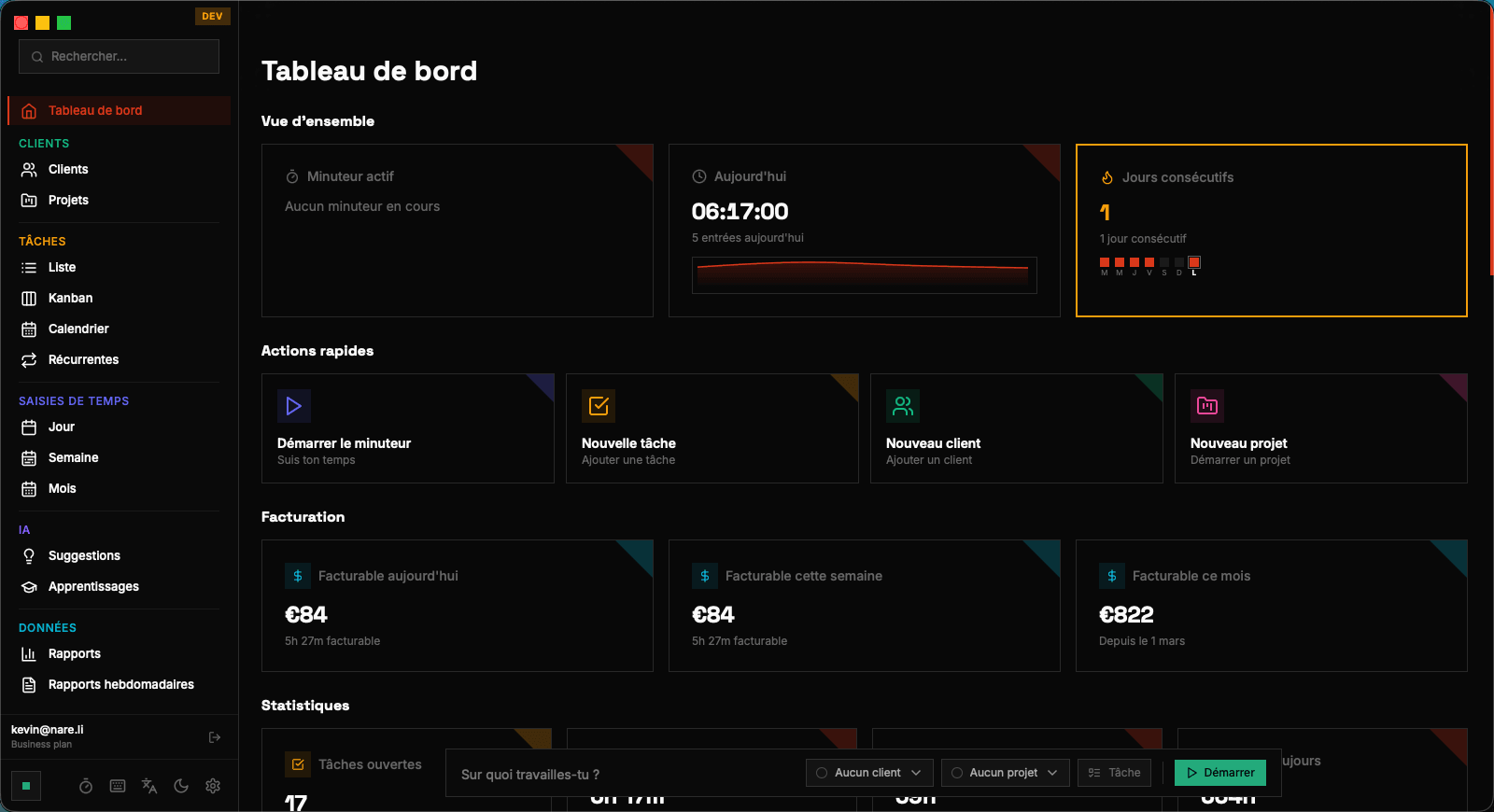
Master Nareli's time tracking system — from the floating timer bar with animated state indicators to the day, week, and month views. Learn how to create, edit, and organize time entries efficiently.

The Floating Timer Bar

The floating timer bar is Nareli's signature interface element — a compact, always-on-top window that stays visible no matter which application you're working in. The bar displays the current timer duration and provides instant controls to start, pause, and stop recording without switching away from your work. The timer bar features an animated border that communicates its state at a glance. When a timer is actively running, the border pulses with a smooth animation, making it immediately obvious that time is being recorded. When paused, the border shows a distinct paused-state animation. When stopped and idle, the border remains static. These visual cues eliminate the common anxiety of "is my timer actually running?" that plagues many time tracking tools. You can reposition the floating bar anywhere on your screen by dragging it. Nareli remembers your preferred position between sessions. The bar is designed to be unobtrusive — it's large enough to read the timer at a glance but small enough that it doesn't interfere with your workflow, even on smaller MacBook displays.

The floating timer bar appears as a separate Tauri webview window, which is why it can float above all other applications including full-screen apps.

Starting and Stopping Timers

Starting a timer is as simple as clicking the play button on the floating bar. The timer begins counting immediately, and you can add details — a description, linked task, project, and billable status — either right away or after you stop the timer. This flexibility lets you capture time first and categorize it later, reducing friction when you need to start tracking quickly. When you stop a timer, Nareli creates a new time entry spanning from when you pressed start to when you pressed stop. A quick-edit interface appears, letting you fill in the entry's details. If you linked the timer to a task before starting, those details are pre-populated. You can also split a long timer session into multiple entries if you worked on different things during that period. Pausing a timer is useful when you take a break but plan to continue the same task later. The paused duration is excluded from the final time entry, so only your actual working time is recorded. You can pause and resume as many times as needed within a single tracking session.

Timer controls:
  ▶  Start / Resume timer
  ⏸  Pause timer (break time excluded)
  ⏹  Stop timer and create entry

Day View: Visual Timeline

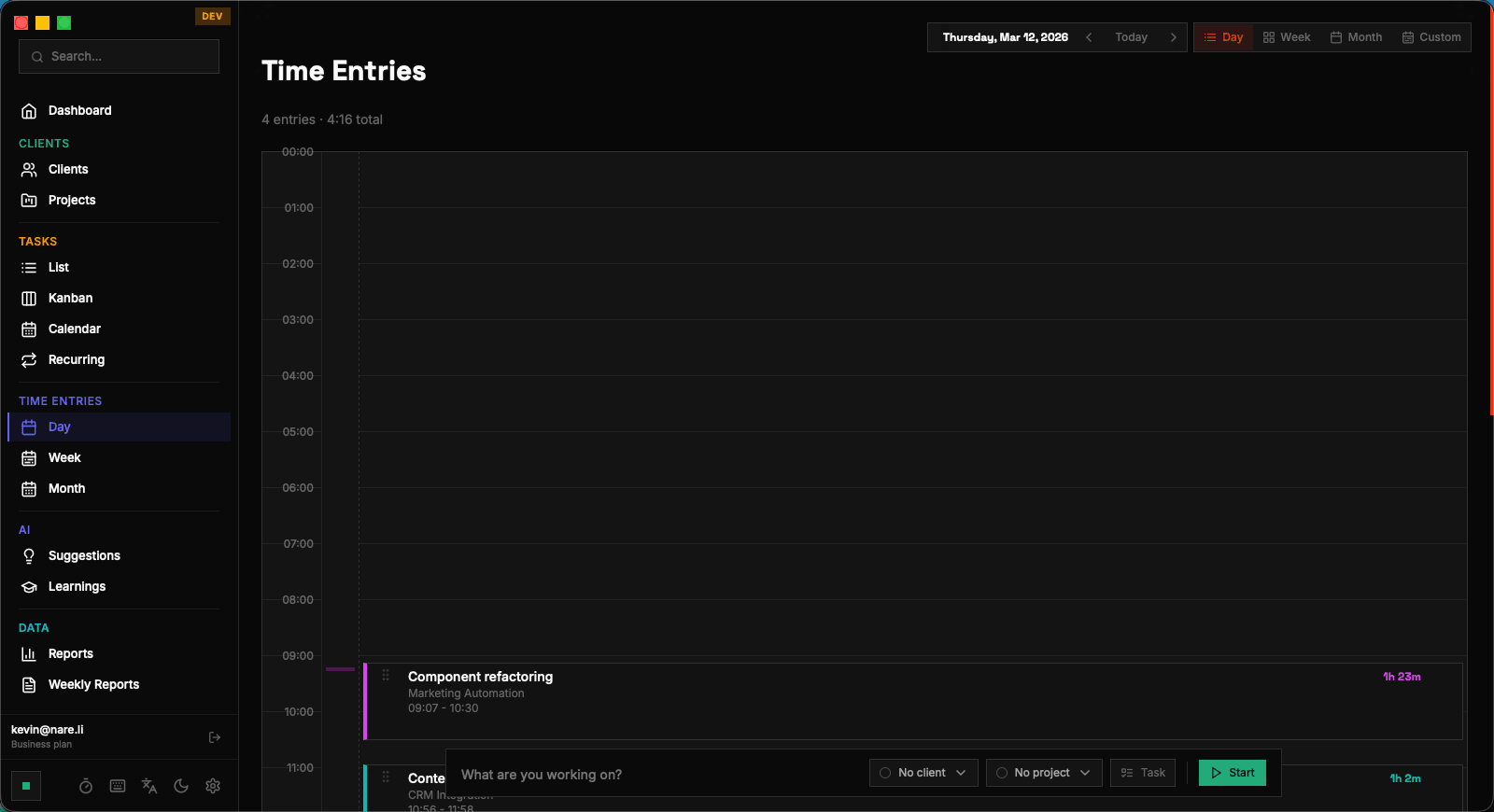
The Day View presents your time entries as colored blocks on a vertical timeline spanning your workday. Each block represents a single time entry, with its height proportional to its duration and its color inherited from the linked project or client. This visual layout gives you an immediate sense of how your day was structured — where you spent focused time, where gaps occurred, and how your work was distributed. You can interact directly with blocks on the timeline. Click a block to view its details and edit the description, linked task, or billable status. Drag the top or bottom edge of a block to resize it, adjusting the start or end time of the entry with precision. Drag an entire block up or down to move it to a different time slot. These direct-manipulation gestures make it fast to adjust entries without opening forms or dialogs. Suggestion blocks also appear on the Day View alongside your confirmed time entries. These AI-generated suggestions are visually distinct — rendered with a dashed border and a subtle background pattern. You can accept a suggestion to convert it into a real time entry, or decline it to remove it from the timeline. This side-by-side display lets you compare what you actually tracked against what Nareli thinks you might have been working on. The Day View includes a "now" indicator — a horizontal line showing the current time — that scrolls the view to keep the present moment visible. This makes it easy to see how much of your day has been tracked so far and identify any recent gaps.

Drag the edges of a time entry block to resize it directly on the timeline. Changes are saved automatically.

Week View: Weekly Overview

The Week View displays a seven-day summary of your tracked time. Each day column shows the total hours logged and a breakdown by project or client, using the same color coding as the Day View. This perspective is invaluable for spotting patterns — maybe you consistently under-track on Fridays, or your most productive days are Tuesdays and Wednesdays. The week view also surfaces your daily totals against any configured goals. If you've set a daily tracking goal of 7 hours, each day column shows a progress indicator so you can see at a glance which days met the target and which fell short. Weekly totals are displayed at the bottom, along with comparisons to the previous week. You can navigate between weeks using arrow controls or jump to a specific week using the date picker. Clicking on any day in the Week View transitions you to the Day View for that date, providing a seamless drill-down from weekly overview to daily detail.

The week starts on Monday by default. You can change this in Settings → General.

Month View: Monthly Summary

The Month View provides the broadest perspective on your time tracking data. It renders a calendar grid where each day cell displays the total hours tracked, color-coded by intensity — lighter shades for low-activity days and deeper shades for high-activity days. This heat-map style visualization makes it trivially easy to spot your most and least productive periods over an entire month. The sidebar in the Month View shows aggregate statistics: total hours tracked, average daily hours, total billable hours, and a breakdown by client and project. These summaries update dynamically as you navigate between months, giving you a quick snapshot without needing to generate a full report. Like the Week View, clicking on any day in the calendar navigates you to the Day View for detailed inspection. The Month View is particularly useful at the end of a billing cycle when you need to verify that all client work has been properly logged before generating invoices.

Month View is ideal for verifying completeness before invoicing. Look for days with unusually low hours that might indicate missed entries.

Editing Time Entries

Every time entry in Nareli can be edited after creation. From the Day View, click on any entry block to open its detail popover. From list-based views, click the edit icon on any row. The edit interface lets you modify the description, adjust start and end times, change the linked task or project, toggle billable status, and add internal notes. Time adjustments can be made either by typing exact times or by dragging block edges in the Day View. When you adjust the duration of one entry, Nareli does not automatically adjust adjacent entries — each entry is independent. This means overlapping entries are allowed and will be visually indicated on the timeline, so you can identify and resolve conflicts. You can also delete time entries that were created in error. Deleted entries are removed permanently — Nareli does not use a trash or soft-delete system. If you accidentally delete an entry, you'll need to recreate it manually. For this reason, the delete action requires confirmation.

Overlapping time entries are highlighted with a visual indicator on the Day View. Check for overlaps regularly to keep your timeline accurate.

Linking Entries to Tasks and Projects

Time entries become most valuable when linked to tasks and projects. When creating or editing a time entry, you can select a task from a searchable dropdown. The entry automatically inherits the task's project and client associations, so you don't need to set those fields separately. This cascading linkage ensures your time data is consistently organized for reporting. If you haven't created a task yet, you can create one inline from the time entry form — type a new task name and Nareli offers to create it on the spot, optionally linking it to an existing project. This quick-create flow minimizes context switching and encourages thorough categorization without slowing you down. Unlinked time entries — those without a task or project — appear in a distinct style on the timeline and in reports. Nareli surfaces unlinked entries in the Dashboard as a gentle reminder to categorize them. Properly linked entries power accurate per-client and per-project reports, which are essential for billing and productivity analysis. For recurring work patterns, consider creating tasks in advance and pinning your most-used tasks for quick access. The floating timer bar's task selector shows your recently used tasks at the top, making it fast to start tracking against a common task without searching.

Linking hierarchy:
  Time Entry → Task → Project → Client

  Setting a Task auto-fills Project and Client.
Time Tracking | Nareli